Smalltown Boy Cats AI: Make a Two-Cat Dance Edit
Learn a smalltown boy cats ai workflow using Vogoo to generate dual-cat base frames, isolate motion passes, and assemble clean fallback shots on a timeline.
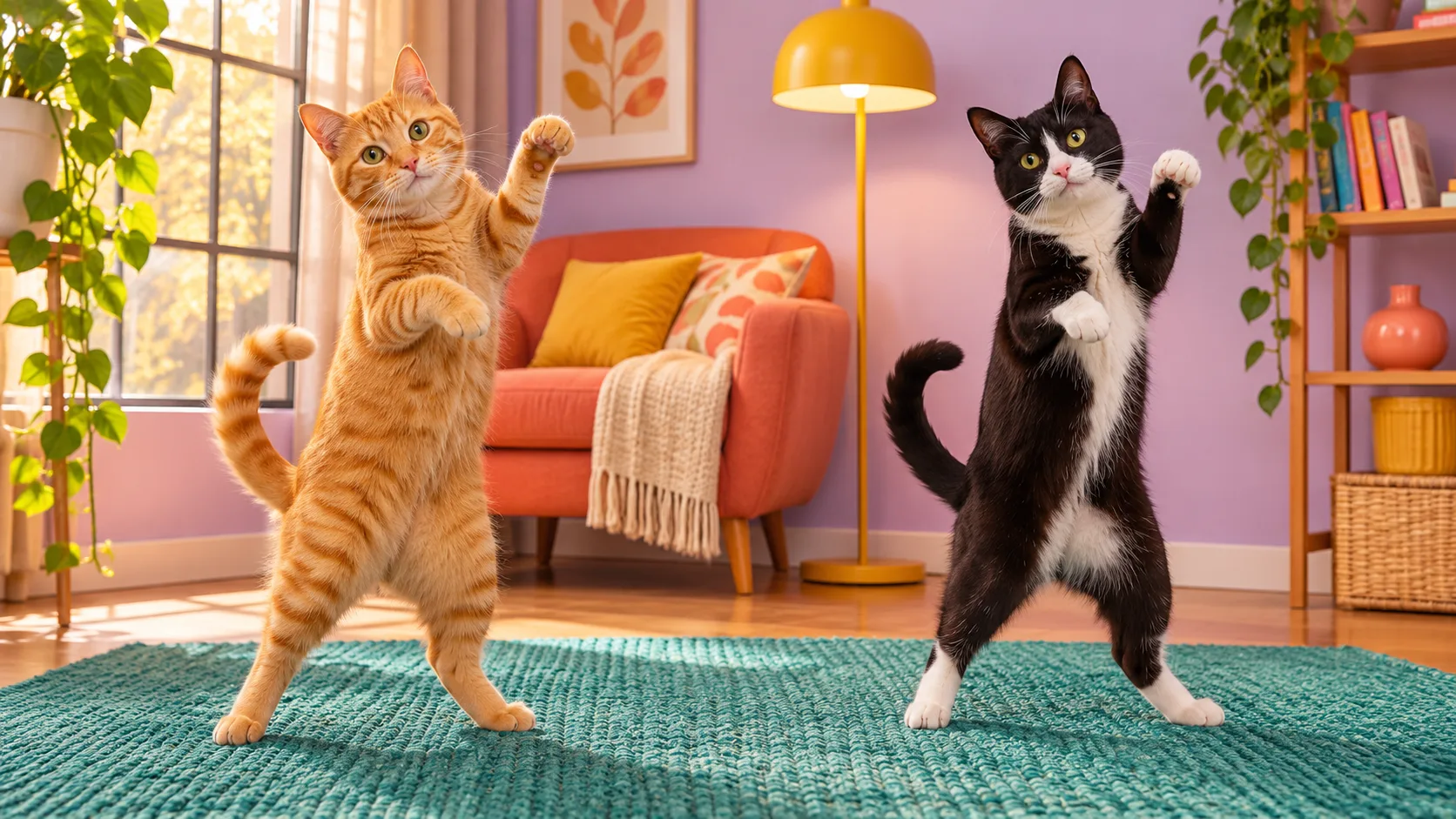
Cover note: Editorial illustration of ginger cat left and black-and-white cat right, not a walkthrough output.
Two Cats, One Screen: Managing Dual-Pet AI Video
Suppose you want to create a clip of two pet cats dancing side by side. When experimenting with generative video, you may quickly hit common dual-subject failures: an orange tabby and a tuxedo cat swap coats, sprout extra limbs, or merge into a single animal as motion begins.
A two-cat edit gives you two faces, two sets of markings and a shared scene to inspect. This guide uses the smalltown boy cats ai idea as a starting point for an original edit, with checkpoints for each pet before you add another movement.
This workflow relies on three core rules:
- Hold Cat A strictly on the left and Cat B on the right across every frame.
- Change only one movement factor per generation pass.
- Fall back to sequential single-cat timeline cuts if simultaneous motion blurs markings.
This walkthrough uses Vogoo for image and movement passes, then a separate editor for the selected soundtrack. Check the chosen model audio settings independently. It supplies no music file or recording licence. Exact choreography and synchronized animal mouths have not been validated here.
Quick Choice: Selecting Your Two-Cat Motion Approach
Before entering prompts, decide whether both cats need to move in the same shot. Start with the simplest format that tells your story, then inspect overlap and changes in appearance.
| Format | Inspect First | What Can Still Fail | Use It For |
|---|---|---|---|
| Still Pair | Coat markings, faces and paw count | A still can blend the references | Establishing the opening composition |
| Single Paired Gesture | The gap while either paw moves | Markings can drift even without crossing | Testing a simple shared action |
| Alternating Single Closeups | Each cat against its own reference | A single-subject shot can still change its subject | Avoiding two bodies overlapping in one frame |
Step 1: Build the A/B Identity Card
Define an identity card before rendering so you have a specific reference for spotting swapped markings. It is a comparison aid, not a guarantee that the model will retain each feature.
If your generator supports multi-image inputs, provide one distinct reference photo per cat. In Vogoo Image-to-Image, reference uploads guide colors and contours, though references guide likeness rather than guarantee exact physical replication.
Example only: replace these markings with your cats' actual features, then keep the chosen identity card fixed:
- Cat A (Left): Short-haired orange tabby, pale green eyes, pink nose, striped tail, no white bib.
- Cat B (Right): Short-haired black-and-white tuxedo cat, yellow eyes, black nose, white chest patch, white front paws, black tail.
- Spatial Boundary: A clearly visible gap separating both cats; both standing on the same floor level.
Step 2: Generate the Anchor Still Frame
For this workflow, make an anchor still before animating. That lets you inspect the composition and each cat's markings independently of movement.
Enter this prompt structure in your text-to-image tool:
Full front view of two distinct domestic cats standing upright side by side on a neutral wooden floor, studio lighting. Far left: one orange tabby cat with green eyes and fully striped coat. Far right: one black and white tuxedo cat with yellow eyes and white chest patch. A clear empty gap separates the two cats. Both cats have all four paws visible and separated, standing on the same ground plane. Steady eye-level framing, sharp focus, clean silhouette, no overlapping limbs.Inspect the generated still frame before touching motion tools:
- Faces: Are both facial structures distinct without bleeding patterns?
- Silhouettes: Does an empty gap separate the two bodies?
- Paws: Are all visible paws attached to the proper cat without extras?
- Markings: Did the tuxedo cat remain black and white without orange patches?
Adjust and lock your starting base image using Vogoo Image-to-Image.
Step 3: Run One Controlled Motion Pass
Upload your clean two-cat anchor frame into Vogoo Image-to-Video. The objective is subtle synchronized motion without body crossing.
For your smalltown boy cat dance edit, begin with one simple shared gesture. Check the result before trying a more elaborate routine. This motion prompt is an untested starting point:
Steady eye-level camera. Cat A stays on the left and Cat B on the right, with a clear gap between them. Both cats gently lift one front paw once, then hold their poses. Keep each face visible, with the original coat markings and body proportions as closely matched to the starting image as possible. Keep movement small and the two silhouettes separate.Evaluate the motion pass against practical visual risks:
- Identity Drift: As frames advance, check whether Cat B acquires orange tabby patches.
- Occlusion: If one cat passes in front of the other, compare its face and coat before and after the overlap. Test a wider gap or smaller movement if either changes.
- End-Frame Continuity: If creating a loop, verify that ending paw positions mirror the opening frame.
Compare output to your identity card. If markings migrate, abandon paired motion and switch to the fallback method.
Step 4: The Clean Fallback Workflow (Alternating Cuts)
If paired motion keeps blending the coats, try alternating single-cat shots. Each still needs its own identity check, but you can inspect one subject at a time without the two bodies overlapping.
- Generate Cat A as an isolated full-body clip on the left side of the frame.
- Generate Cat B as an isolated full-body clip on the right side under identical lighting.
- Place both clips sequentially on an editor timeline, such as the CapCut Video Merger.
- Cut between clips on musical beats—two beats of Cat A, two beats of Cat B, then a cut to the paired still.
Sequential cutting gives each pet a separate shot in your smalltown boy cat ai edit. It avoids same-frame overlap, but it does not guarantee that a generated cat will retain every detail of its reference.
Step 5: Audio Alignment in an External Editor
A two-cat dance edit relies on rhythmic timing. This workflow places the selected soundtrack in an external editor after the visual passes.
- Audio Generation Settings: Some Vogoo video models can generate audio. Exact animal lip sync is outside the verified scope of this guide. Check your selected model audio settings independently. If a clip contains unwanted generated audio, mute it in your timeline editor.
- Licensing and Usage: This tutorial supplies no music track or recording licence. When publishing, consult YouTube Audio Usage Guidance to verify copyright and attribution rules.
- Beat Matching: Import your licensed audio file into CapCut Add Music to Video. Align the apex of the synchronized paw lift with the track's snare or kick beat.
Troubleshooting Common Generation Flaws
When producing a smalltown boy cats ai dance clip, visual glitches follow familiar patterns. Test these corrective actions when runs fail.
| Symptom | Likely Factor | Next Test |
|---|---|---|
| Tuxedo cat gains orange spots | Identity drift from excessive movement prompts | Remove extra motion verbs; state "Cat B remains pure monochrome" |
| Paws merge into one central limb | Center gap too narrow in anchor still | Re-render still frame with "wide empty physical gap between both cats" |
| One cat turns away or leaves frame | Dynamic camera pan or unconstrained framing | Add "fixed stationary tripod shot, both cats remain fully visible" |
| Face shape distorts during lift | Movement requested in the prompt may be too large | Request a smaller paw lift and remove other movement verbs |
Pre-Export Stop/Go Checklist
Before exporting the final edit, inspect these checkpoints:
- Identity Check: Cat A remains orange tabby; Cat B stays black and white without color migration.
- Limb Integrity: All paws remain separate with zero fused anatomy.
- Screen Position: Cat A stays left and Cat B stays right across all frames.
- Audio Isolation: Review or mute unintended generated audio in the editor before the final mix.
- Licensing Check: Your soundtrack adheres to platform copyright rules.
Frequently Asked Questions
Does this workflow supply the original song?
This walkthrough supplies no music file or recording licence. Choose an audio source permitted for your intended upload and add it in your editor; check its track-specific terms.
Can the AI replicate the exact viral dance routine?
This guide has not validated the exact routine or synchronized animal mouths. Its proposed simple gestures are starting points to test and inspect, rather than a promise of a matching performance.
Can I use two separate photos of my own cats?
Yes, if your generator supports multi-reference uploads. In Vogoo Image-to-Image, reference images guide visual patterns rather than guaranteeing exact physical likeness.
Why do my cats swap markings during animation?
Overlap and changing appearance are useful things to check when markings drift. Test a wider gap and change one movement variable at a time. Neither adjustment guarantees consistency; compare every new result to the identity card.
Start Your Two-Cat Video Edit
Build the edit around clear checkpoints: inspect both cats in a still, review a simple motion pass, and choose shared shots or alternating cuts according to the results.
Prepare your base images in Vogoo Image-to-Image, animate your anchor frame with Vogoo Image-to-Video, and assemble your final cut on your editor timeline.
Scope Note: Official guides and product capabilities checked 13 Nov 2026. The proposed prompts and editing fallback are editorial suggestions and have not been tested end-to-end in this walkthrough.
Sources
- Vogoo Image-to-Image — First-party reference-image editing interface.
- CapCut Video Merger — Official guide to arranging, splitting and joining video clips on a timeline.
- CapCut Add Music to Video — Official instructions for adding and editing audio tracks.
- YouTube Audio Library — Track-specific attribution and usage guidance.
Author

Categories
More Posts
AI Anime Picture Generator: Prompts, Styles, and Photo-to-Anime
Use an AI anime picture generator the right way: exact anime style prompts, the main sub-styles, and how to turn a photo into anime — without copying characters.
Happy Horse vs Seedance: Which Model to Pick?
Happy Horse vs Seedance: who makes HappyHorse 1.0, how it compares with Seedance 2.0 and 2.5 on modes and audio, and what a 5s clip really costs on one account.
Prompts for Gemini AI Halloween Photos: 12 Looks
Copy-paste prompts for Gemini AI Halloween photos: costume try-ons, pet costumes, couple looks and short video clips, with the keep/change/avoid structure that keeps your face intact.
Newsletter
Join the community
Subscribe to our newsletter for the latest news and updates