
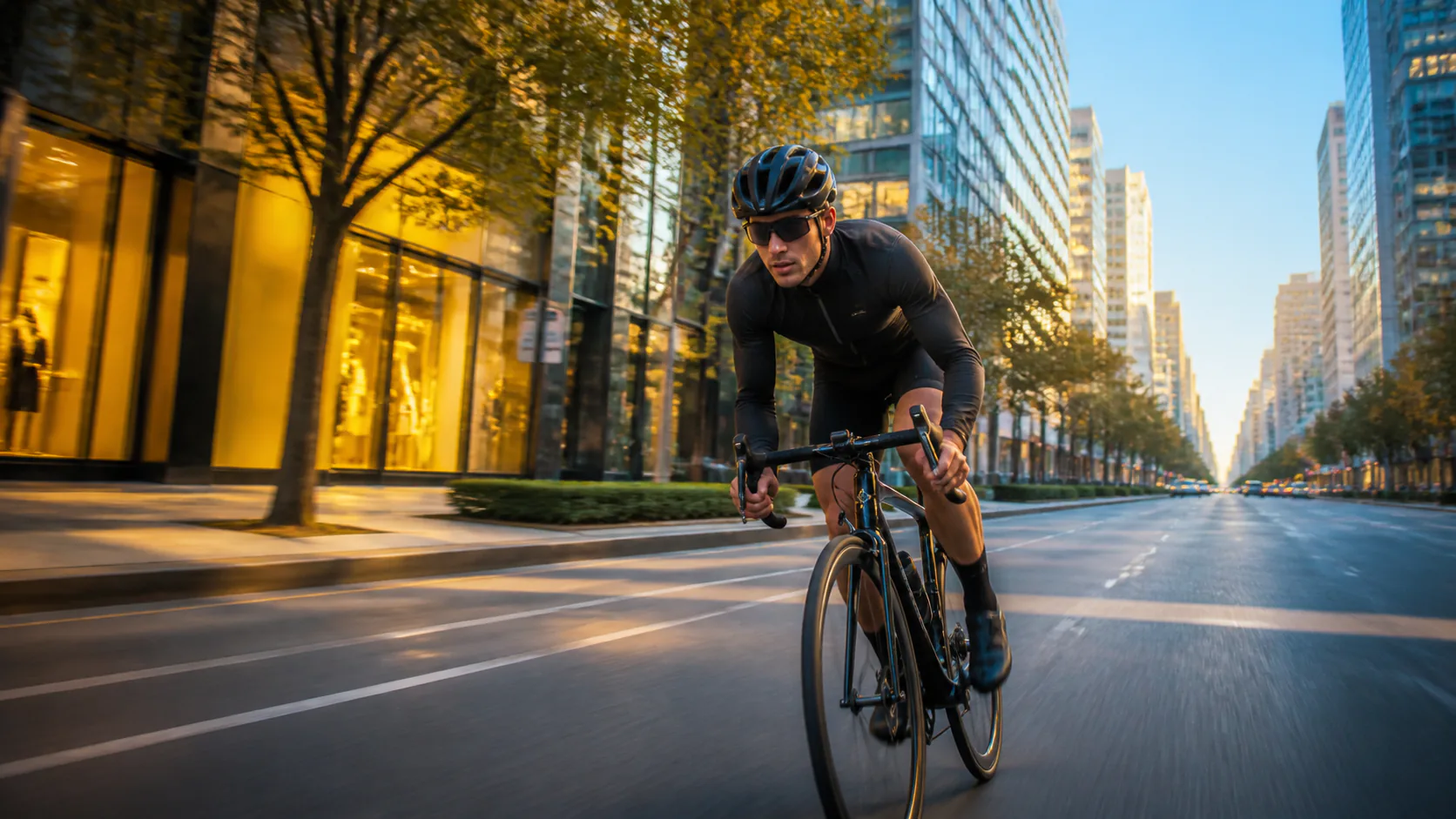
Fast preview intent
Use Kling 3.0 Turbo when the first job is speed: validate motion, framing, subject behavior, and opening hook before investing in a polished render.
Create short video drafts with Kling 3.0 Turbo. Turn text prompts or images into 3 to 15 second clips at 720p or 1080p for fast creative iteration.
Generate a Turbo PreviewKling 3.0 Turbo is a fast video-generation workflow in Vogoo. It turns text prompts or source images into 3 to 15 second clips and gives you 720p or 1080p output choices for review-ready drafts.
Use Kling 3.0 Turbo when the first job is speed: validate motion, framing, subject behavior, and opening hook before investing in a polished render.
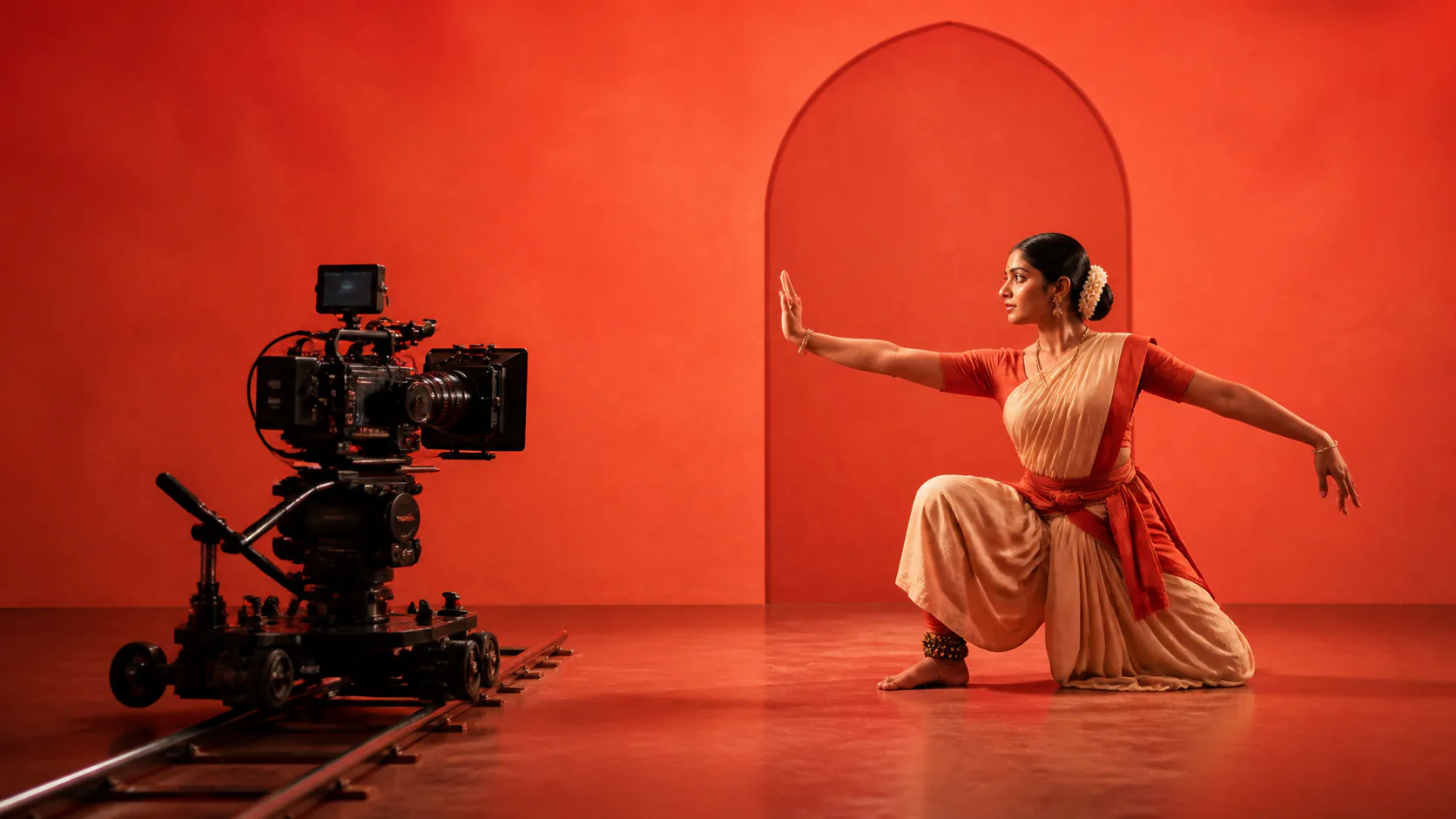
Start with one subject, one action, one camera move, and one style. Tight prompts make Kling 3.0 Turbo previews easier to compare.
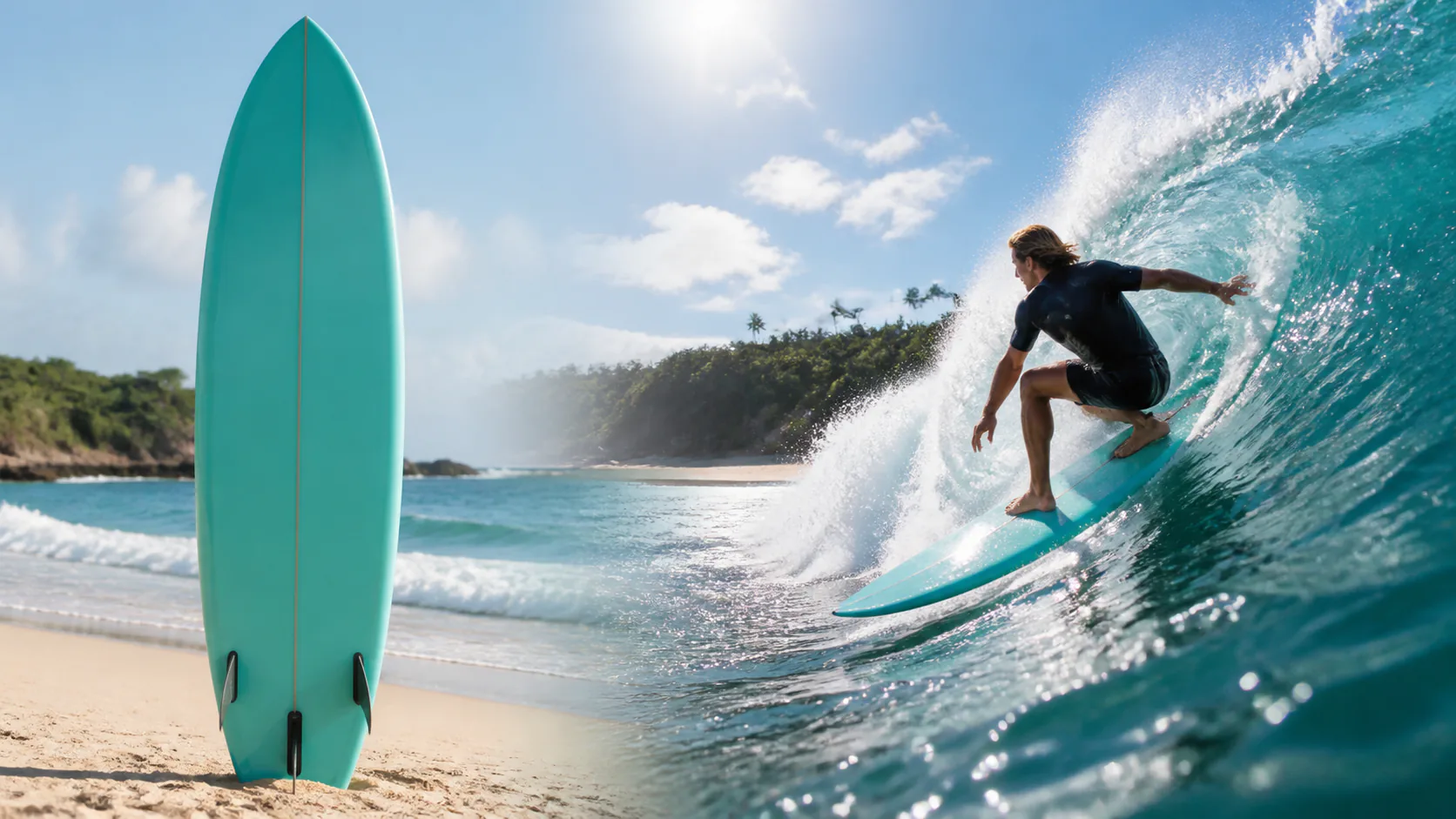
Switch to image-to-video when the subject, product, or composition should stay close to a reference frame while the motion is tested quickly.
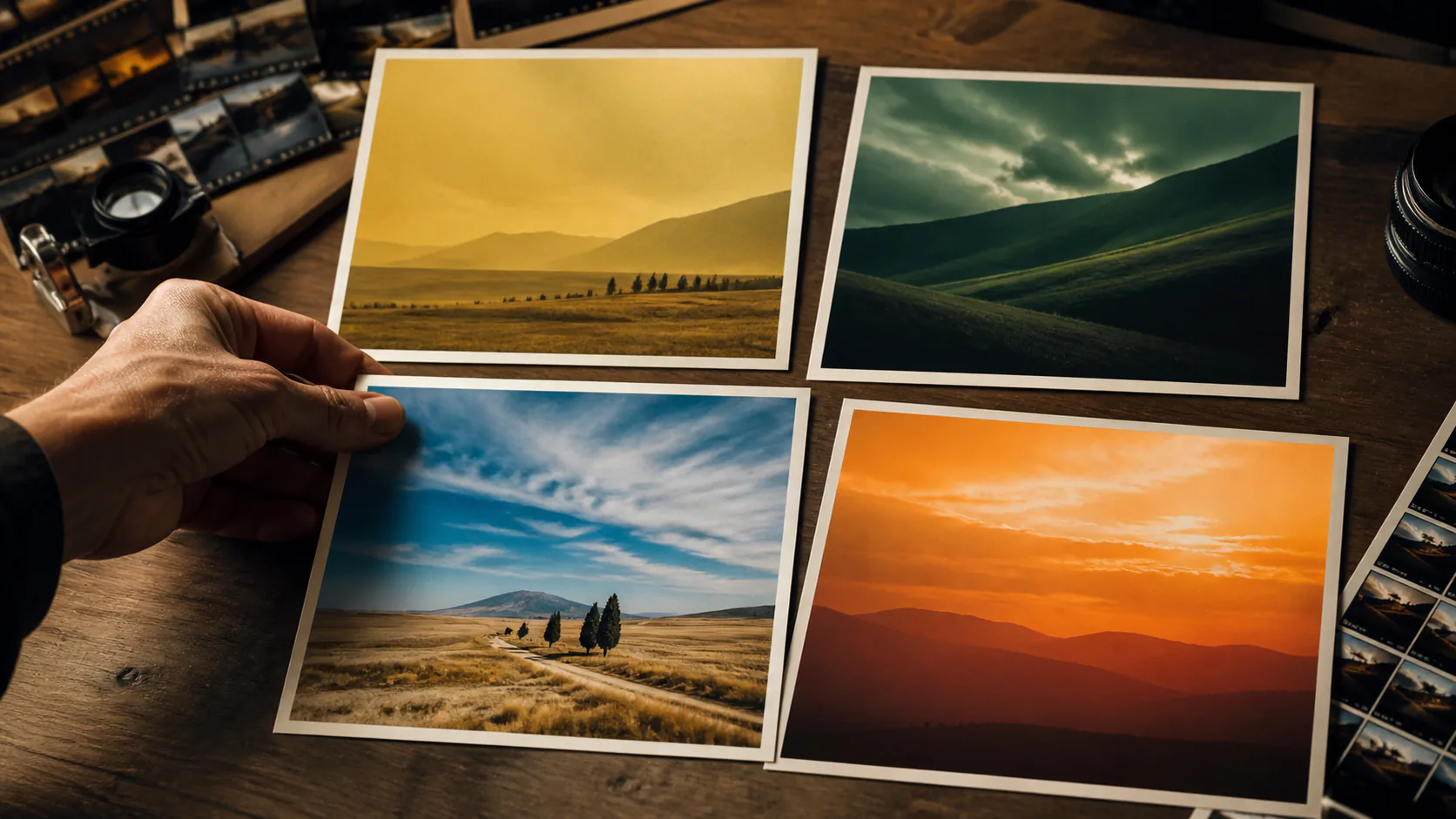
Generate a few directions, review the result set, and move only the best prompt or reference into a higher-polish workflow.
Create text-to-video or image-to-video clips in one streamlined workflow, choose a short duration, and select 720p or 1080p output before you generate.
Turn a focused prompt into a quick AI video preview so the team can judge the scene direction before final output.
Animate a product, portrait, or storyboard frame when the visual anchor matters more than a purely text-led idea.
Compare several camera moves, reveal timings, aspect ratios, or mood directions without turning every idea into a final render.
Use the preview set as a practical review board for motion, prompt adherence, opening hook, and production direction.
Draft product shots, creator hooks, vertical social clips, and campaign mood tests while the idea is still flexible.
Keep Kling 3.0 Turbo focused on visual preview decisions, then move the winning idea into the right final-output workflow.
Start with a short, specific draft and compare only one visible change at a time. Check the opening frame, the action timing, the framing, and the source-image continuity before deciding whether the next pass needs a new prompt, a different image, or a different output setting.
Change the camera direction, motion, or scene mood—not every instruction at once. A focused comparison makes it easier to keep the stronger idea and discard the rest.
Select duration, aspect ratio, and resolution to match the frame you need to evaluate. Save a more involved brief for the option that has already proven its opening, subject behavior, and composition.
Choose text-to-video or image-to-video, enter a prompt or upload a source image, select 3 to 15 seconds and a resolution, then generate and compare the result.
Step 01
Describe one subject, one action, one camera move, one visual style, and the platform or framing you want to test.
Step 02
Use text-to-video for raw ideas, or switch to image-to-video when a product, character, or layout should guide the preview.
Step 03
Review the short preview, adjust motion or framing, and keep the version that should move into final production.
Use Kling 3.0 Turbo where speed matters most: early creative review, short AI video generator tests, and clean handoff into the final production pass.
Create multiple product reveals, opening hooks, or social variants for internal review and choose the strongest visual direction faster.
Convert rough scene notes into video previews that help teams align on pacing, framing, and transitions before final rendering.
Use image-to-video previews to see whether a product, package, or reference frame can carry the motion idea clearly.
Test short vertical or square video directions before committing time to a full edit, campaign, or creator handoff.
Run a small set of prompt variations and judge which one gives Kling 3.0 Turbo the clearest motion and composition signal.
Reserve higher-quality production renders for ideas that already passed the preview stage, reducing wasted attempts on weak concepts.
These creator notes show where Kling 3.0 Turbo fits best: fast Kling Turbo preview checks, AI video generator tests, and reference-led motion review before final output.
“Kling 3.0 Turbo helps our team judge camera travel before a full render. The Kling Turbo preview is quick enough for morning storyboard reviews.”

Jordan Vance
Film Director
“We use Kling 3.0 Turbo as an AI video generator for ad hooks. A short Kling Turbo pass tells us which product idea deserves polish.”

Linda Wu
Marketing Head
“For image-to-video tests, Kling 3.0 Turbo keeps the reference frame readable while we explore motion. Kling Turbo makes visual direction easier to compare.”

Chen Wei
Concept Artist
“Kling 3.0 Turbo is useful when a text-to-video prompt is still rough. We run Kling Turbo previews, cut weak motion, and keep the clearest hook.”

Sarah Jenkins
YouTube Producer
“Kling 3.0 Turbo gives our concept scenes enough movement to judge mood and timing. The Kling Turbo workflow keeps early video review lightweight.”

David Park
Game Developer
“For social variants, Kling 3.0 Turbo works like a fast preview board. The AI video generator helps us compare pacing before campaign editing starts.”

Emma Zhang
Social Media Manager
Common questions about Kling 3.0 Turbo inputs, short video duration, resolution, and fast iteration in Vogoo.
Kling 3.0 Turbo is a speed-focused AI video workflow for creating short visual previews from text prompts or reference images. Use it to compare motion directions before final output.
Yes. This page opens a video generator configured for Kling 3.0 Turbo text-to-video, with image-to-video available when a reference frame should guide the preview.
Yes. The page includes a Kling 3.0 Turbo image-to-video mode so a product, portrait, or storyboard frame can guide a short preview.
This page does not expose native audio for Turbo. The current provider schema and project preset do not confirm a Turbo audio parameter, so audio controls stay hidden.
Use it for ad hooks, social video variants, product motion previews, storyboard motion studies, reference-image animation, and creative review loops.
Use one subject, one action, one camera move, one style, and one framing target. Focused prompts make Turbo previews easier to compare.
They serve different moments. Turbo is for fast previews and iteration, while Pro is better positioned for a more polished final pass after the direction is chosen.
Open the generator, write a focused prompt or upload a reference image, and compare fast AI video previews before final output.