
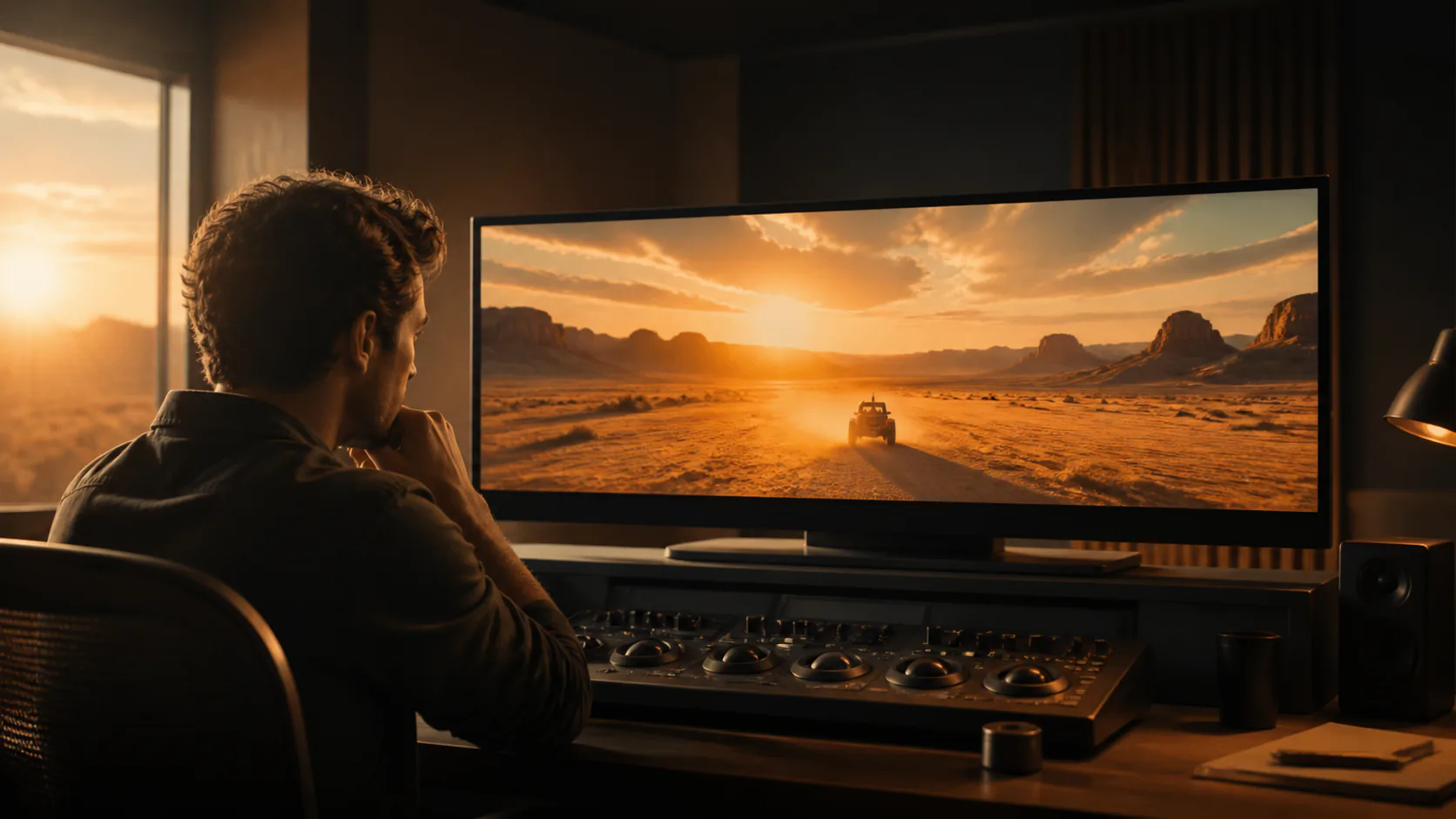
Focused model intent
The Pro model stays one focused family, with unrelated AI image, generic video, and APK topics left to their own dedicated pages.
Generate short videos from a text prompt or source image with Kling 3.0 Pro. Choose a 3 to 15 second duration, set the aspect ratio, and add audio when it fits the scene.
Try Kling 3.0 ProKling 3.0 Pro turns text descriptions or starting images into short video clips in Vogoo. It supports prompt-led creation, aspect-ratio choice, optional audio, and model-specific controls for more directed results.
The Pro model stays one focused family, with unrelated AI image, generic video, and APK topics left to their own dedicated pages.
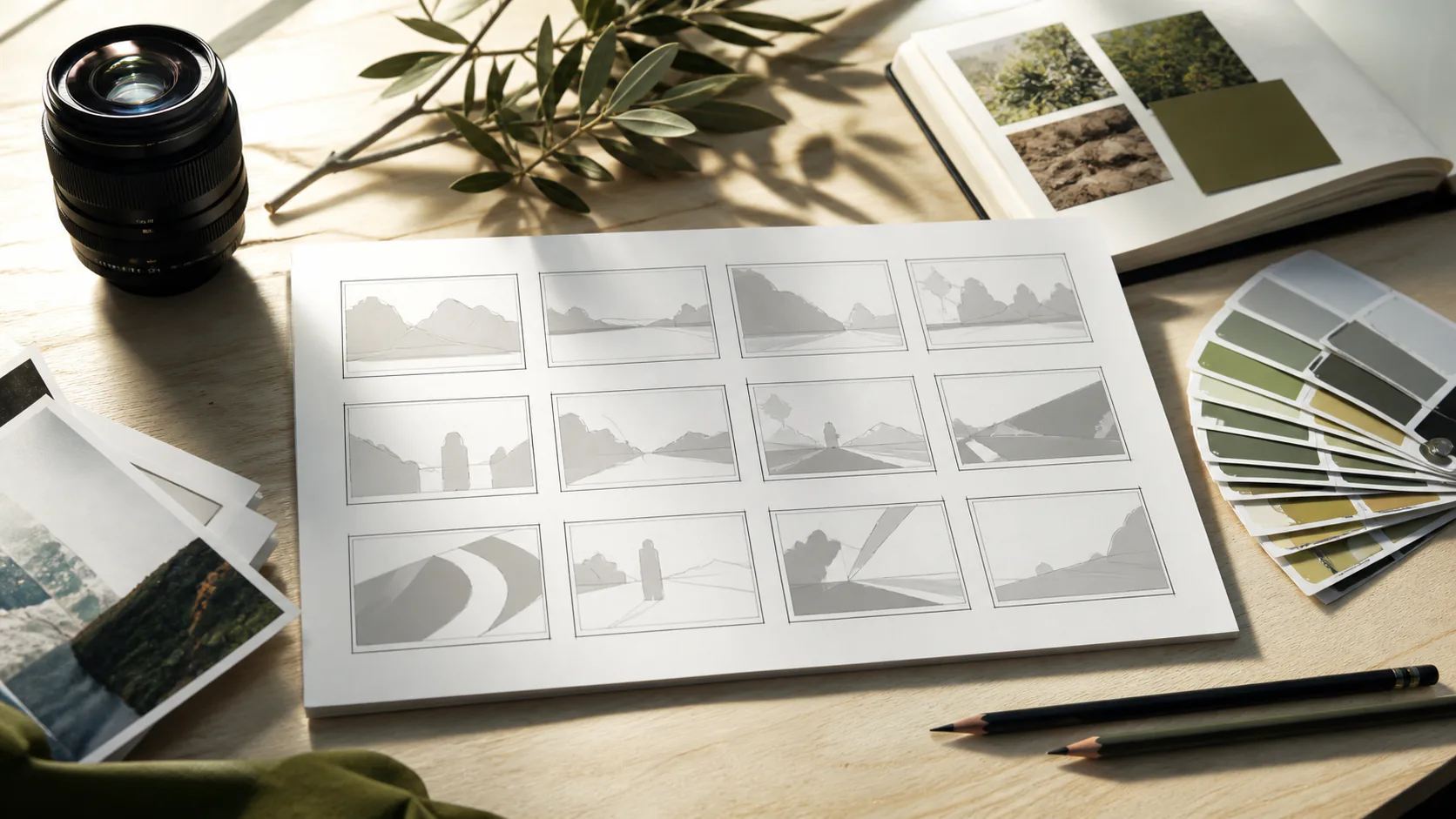
Each generation works best with one clean brief covering subject, location, motion, camera direction, audio intent, and duration.
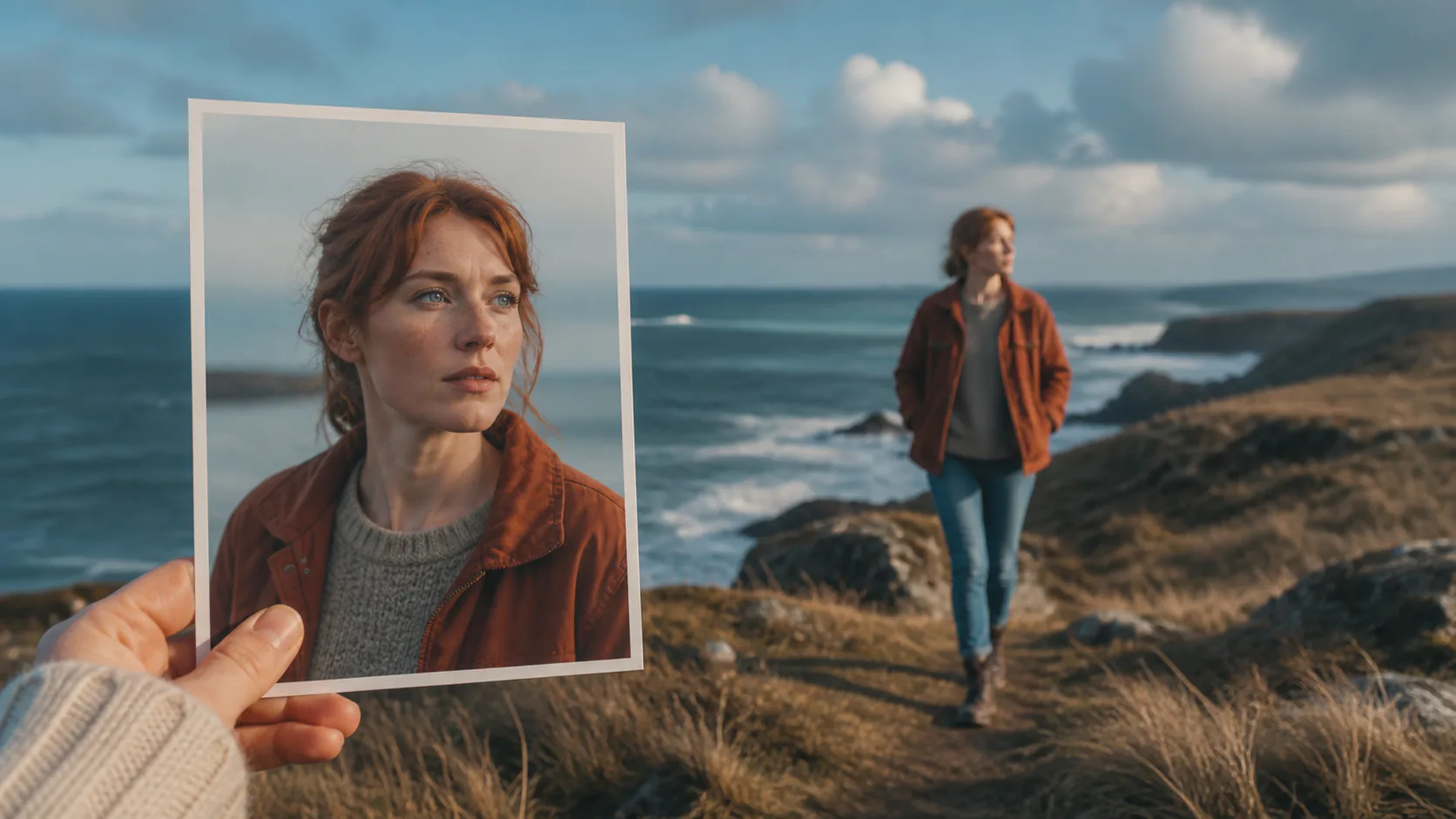
Use image-to-video when the subject, product, or visual style must stay close to a reference and avoid drift across drafts.
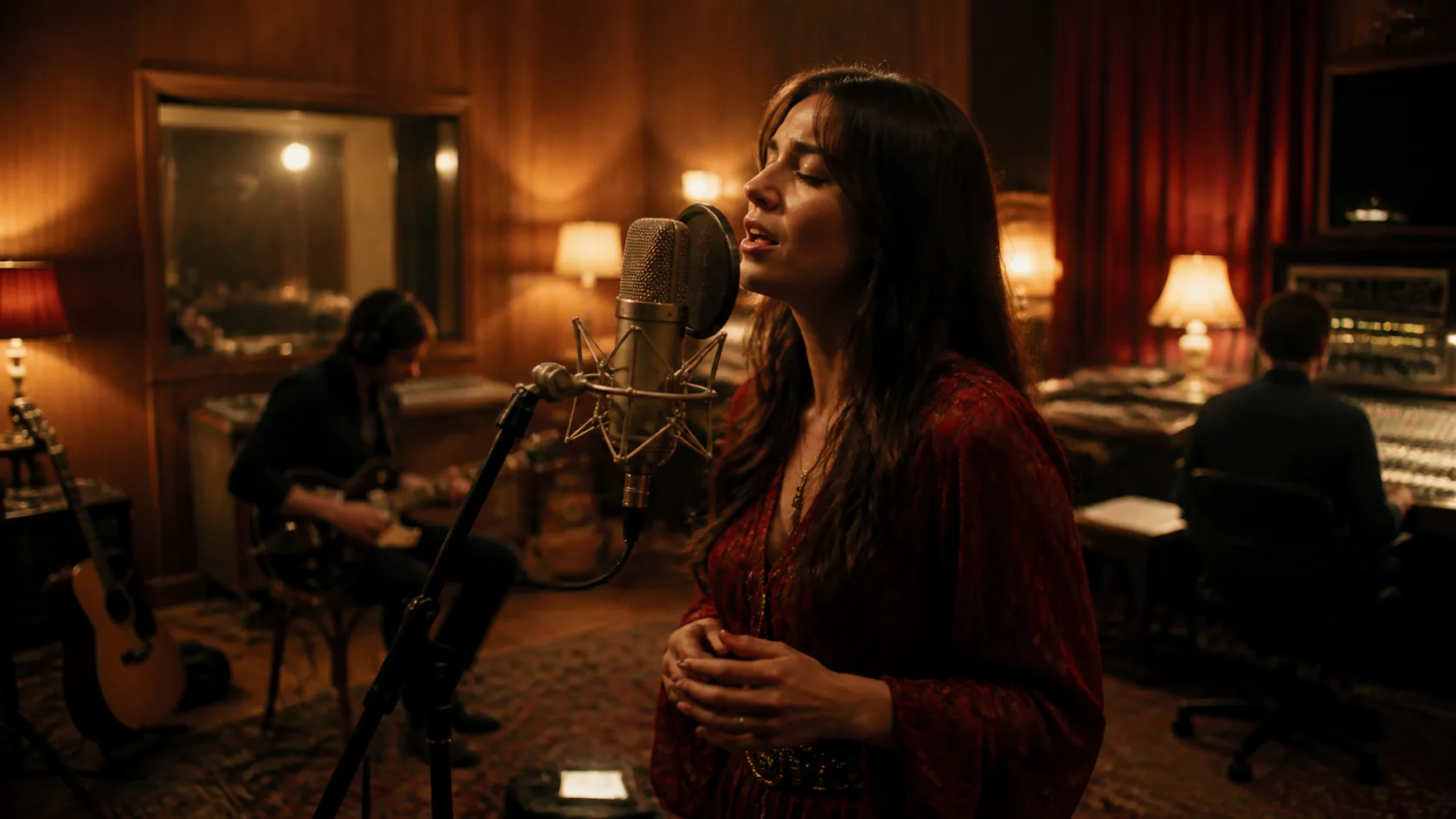
Plan native audio sync and lip-sync paths in advance, and confirm the final options in the generator before spending any credits.
Start from text or an image, tune duration and aspect ratio, then use audio, multi-prompt sequences, an end image, and reference elements when the active mode supports them.
Text-to-video turns one focused scene prompt into a realistic clip with subject, camera, motion, mood, and audio intent kept together.
Image-to-video preserves the visual anchor of a portrait, product, or scene while adding camera motion and cinematic pacing on top.
Multi-shot work improves when you split one concept into opening frame, action beat, detail shot, reaction, and final export frame.
Plan native audio sync before rendering so dialogue, music cues, and motion rhythm can be reviewed together as one timeline.
Useful for action clips where movement arcs, gravity, body timing, and camera follow-through all need a clean review pass.
A draft-to-final flow: test the prompt, compare output, then move toward sharper 1080p exports for ads and social clips.
Use a single clear creative brief before you begin. Name the subject, location, primary movement, camera framing, and the detail that must remain stable. This keeps the first output easy to judge and gives each later adjustment a purpose.
Text-to-video is useful when the scene is still a written idea. Describe one subject and one action first, then add lighting, camera direction, or atmosphere only when it changes what a viewer will see.
Image-to-video is a better starting point when a product, character, wardrobe, or composition should stay close to an existing visual. Write the requested movement plainly so the source image is not asked to imply it.
Choose a duration and aspect ratio that fit the intended placement, then review the first clip for pacing and framing. This prevents visual polish from distracting from a format that does not suit the final channel.
Optional audio, multi-prompt sequences, end images, and reference elements work best after the first scene direction is coherent. Add one advanced control at a time, so the visual change remains easy to assess.
Use the first render to judge whether the subject and action read clearly. If not, shorten the brief before adding a second movement, a second location, or several camera instructions that compete for attention.
Pick the frame for the final placement, not as an afterthought. A vertical social cut, square product moment, and wide scene each need different placement of the subject and different room for motion.
Look at the whole clip, then compare its opening and closing frames. This catches abrupt changes in character position, horizon, product placement, or camera direction before the draft moves to a further production pass.
A reference image should establish the visual material that needs to stay close: subject, wardrobe, product, or composition. Keep the written brief focused on the one new action that image cannot communicate by itself.
Choose text-to-video or image-to-video, add a source image when needed, set duration and aspect ratio, enable optional audio, then generate and review the result.
Step 01
Describe the video you want with text, or upload an image or video as a reference for the scene.
Step 02
Set the video duration, aspect ratio, and output quality before running the generation job.
Step 03
Click generate, wait a moment, then download the finished HD video for review or publishing.
Short notes from creators using Kling 3.0 Pro for cinematic AI video, image-to-video, and short campaign work.
“Kling 3.0 Pro nails cinematic camera moves on the first draft, which saves us a full review cycle.”

Marcus Hayes
Film Director
“Image-to-video keeps my portraits steady, so the face never drifts between cuts.”

Priya Sharma
Content Creator
“Multi-shot planning is finally usable; we storyboard, generate, and assemble in one sitting.”

Hiroshi Nakamura
Animation Lead
“Our short ads turn around in hours instead of waiting on a freelance editor every week.”

Sofia Garcia
Marketing Manager
“Native audio sync gives motion that actually matches the beat, with no manual cleanup later.”

Ethan Brooks
Music Video Director
“1080p exports look clean across every channel, which made this an easy upgrade for the team.”

Mei Lin
Social Media Lead
Quick answers about Kling 3.0 Pro controls, supported inputs, and prompt-led video creation in Vogoo.
Kling 3.0 Pro is a focused AI video generation workflow for cinematic text-to-video and image-to-video output. This page uses the Pro model as the primary topic and avoids mixing unrelated big keywords into the body copy.
Yes. The generator starts with Kling 3.0 Pro text-to-video, and you can switch to image-to-video when a reference frame should guide the final clip.
Yes. Kling 3.0 Pro plans native audio sync alongside the visuals, so dialogue, ambience, and music cues line up with the motion in the same render pass.
Pricing and credit costs live on the pricing page so this model page can stay focused on the workflow. Open Pricing to compare plans, or use the generator with your current credit balance.
Yes. The whole Kling 3.0 Pro generator runs in the browser on phone, tablet, or desktop, so you can start a new clip from any device without an install step.
Open the generator, focus the brief on Kling 3.0 Pro, and build a clean first draft before scaling duration or quality.