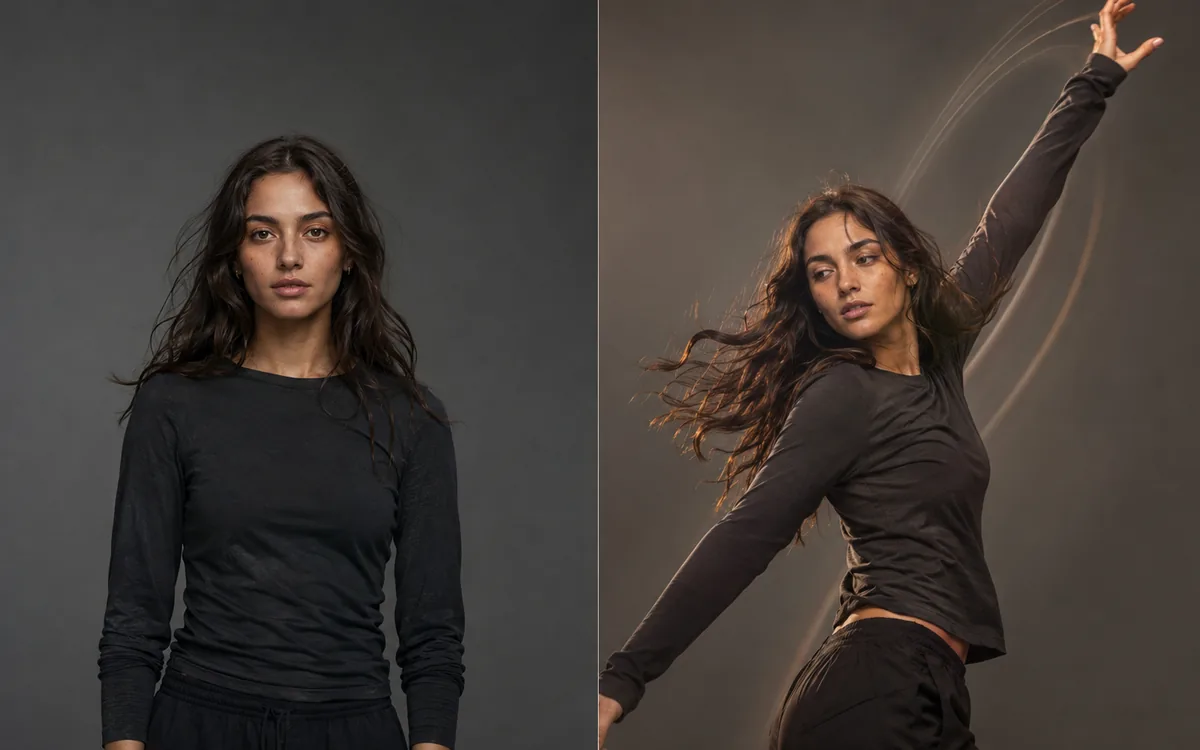
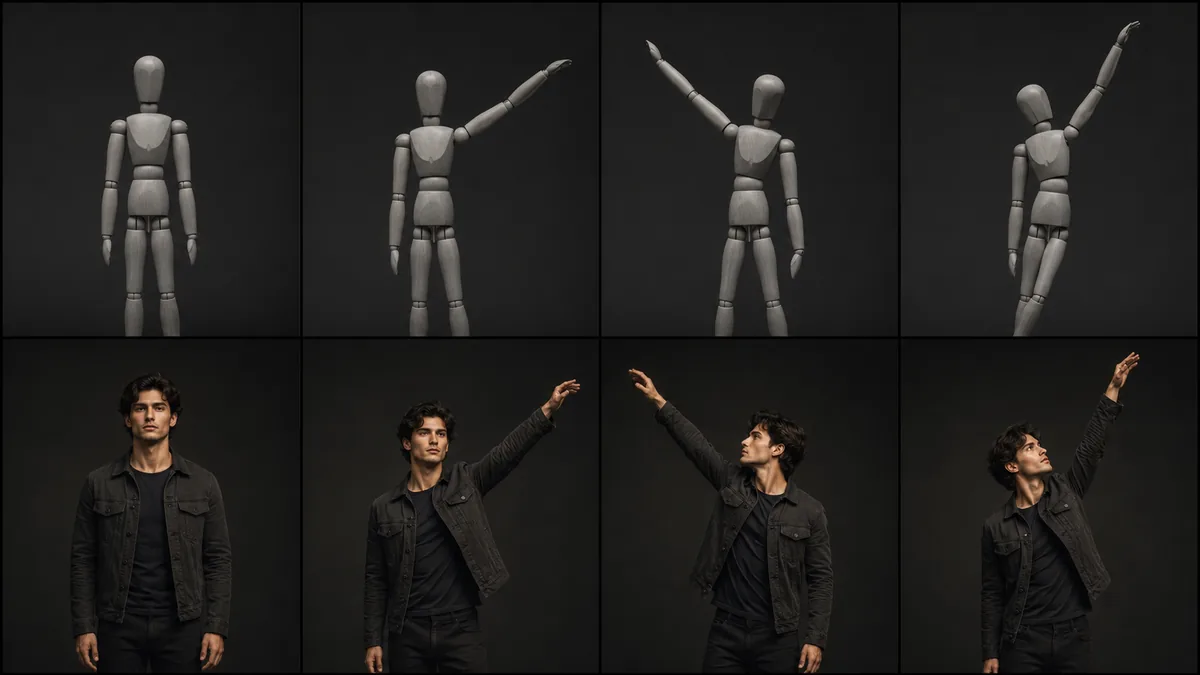
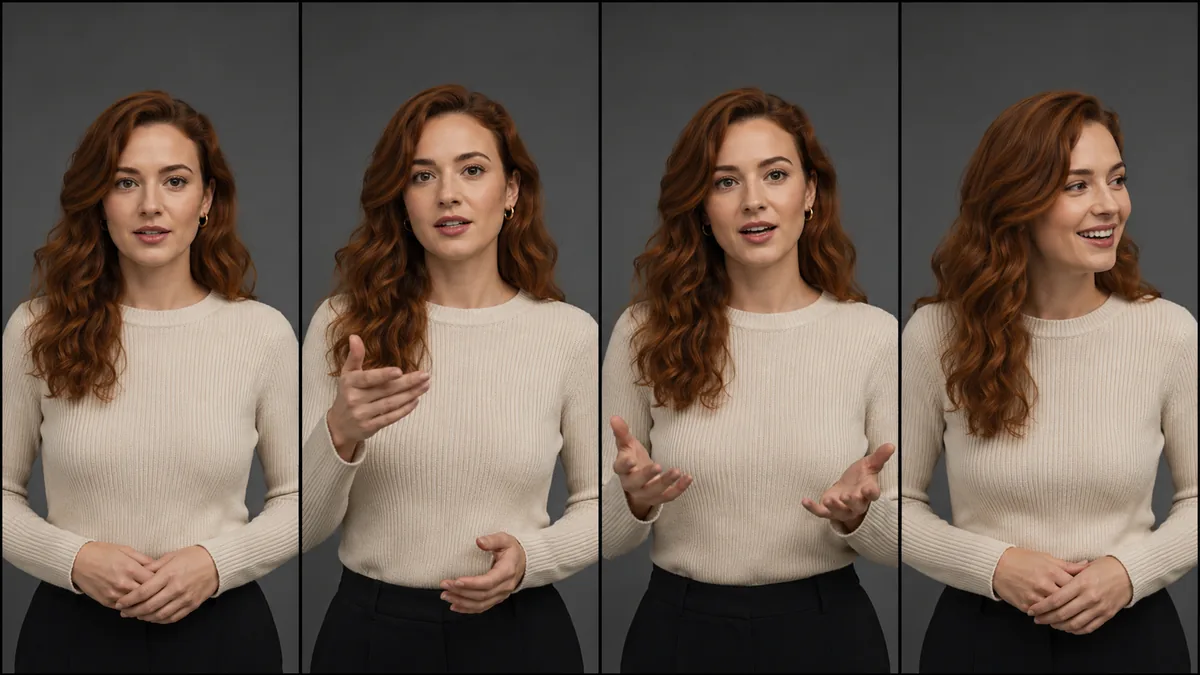
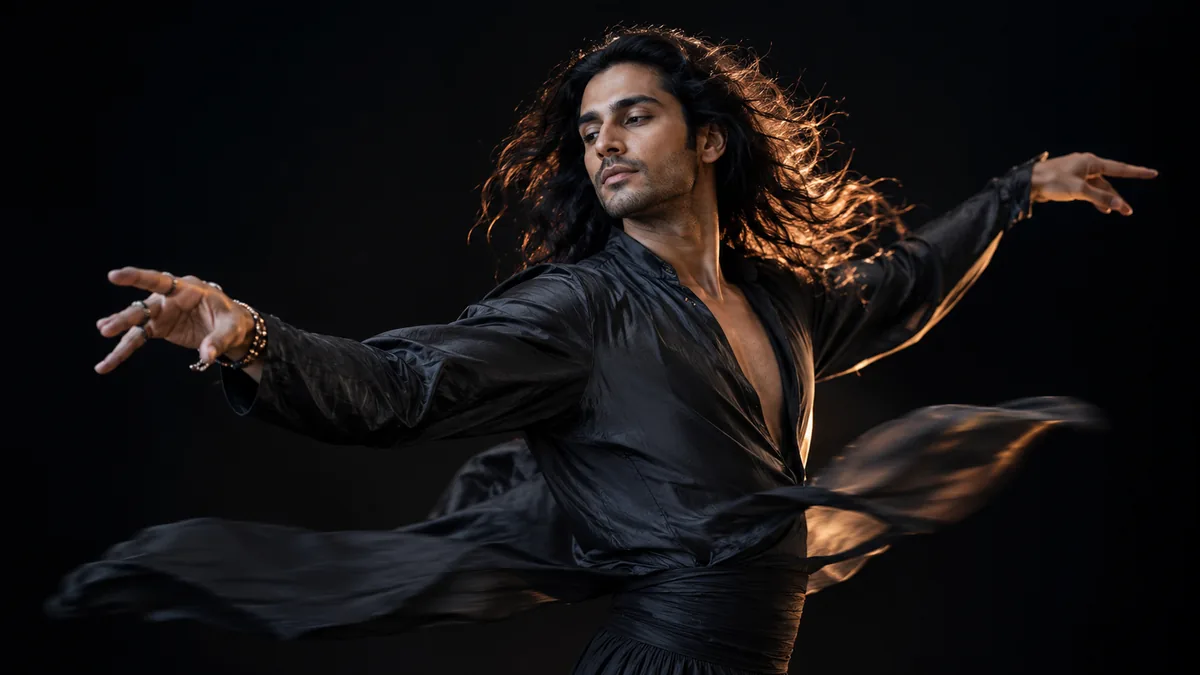
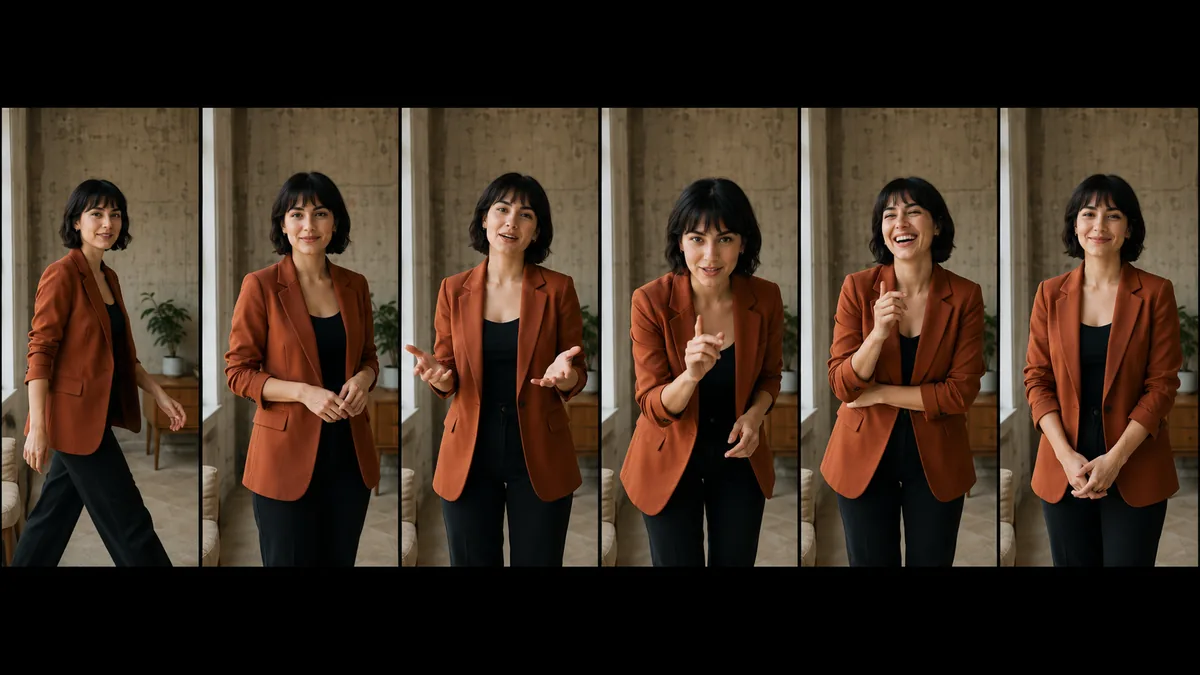
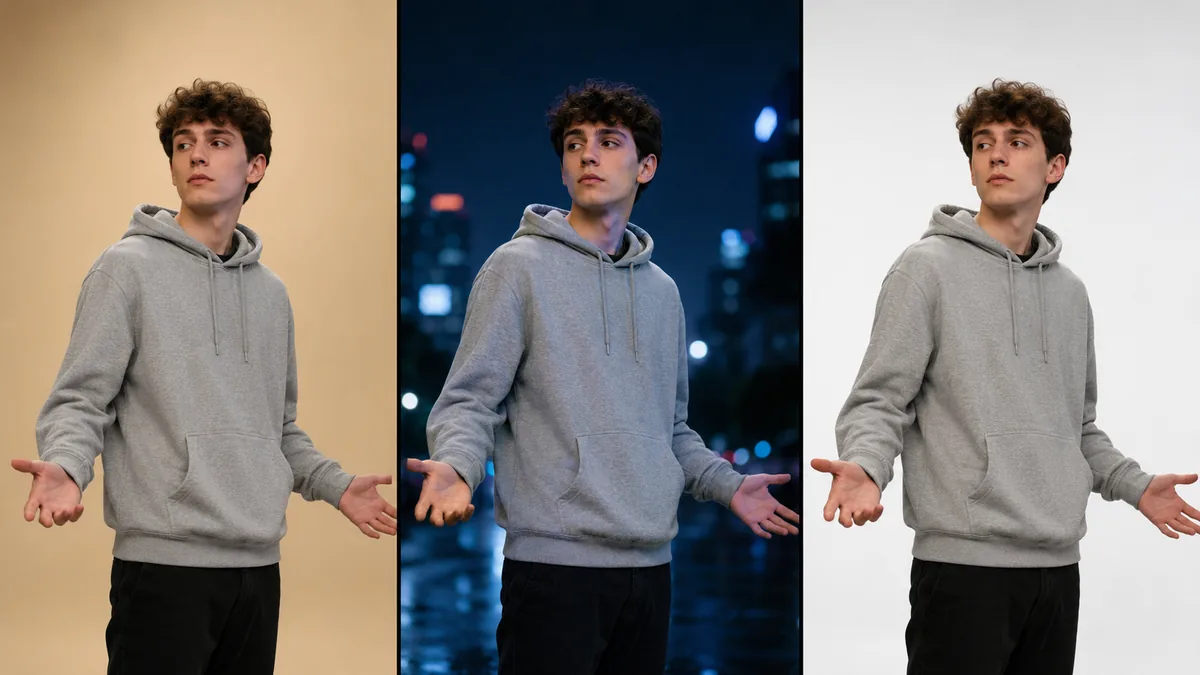
Motion Control AI transfers the movement in a reference video onto a still character image, so one portrait can dance, gesture and present without rigging or keyframes. Upload a character image and a 3 to 30 second reference clip, and the Motion Control AI video renders on Kling 2.6 or Kling 3.0 in 720p or 1080p.
Reference video to character3-30 second clips720p and 1080p outputFree credits to start
Motion Control AI is a video-to-video model that reads human movement out of one clip and re-performs it with the character in your image, keeping that character intact.
What Motion Control AI Does
Motion Control AI separates the performance from the performer. Your reference video supplies timing, body angles and gesture; your character image supplies face, wardrobe and proportions. The render is one new clip where your character carries out that exact performance.
What You Need to Start
Two files. A character image with head, shoulders and torso clearly visible at 340 pixels or more, and a reference video of 3 to 30 seconds showing the same upper body region. A text prompt is optional in Motion Control AI.
How It Differs From Image to Video
Prompt-driven animation invents movement from a description, so every run drifts. Motion Control AI copies motion you already chose, frame by frame, which is why choreography and sign language survive the motion transfer intact.
How Motion Control AI Rebuilds a Performance
Five things the Motion Control AI video pipeline handles for you, from motion extraction through to the final render.
01
Frame-Accurate Motion Transfer
The model reads your reference video frame by frame and maps head turns, shoulder rotation, arm arcs and torso lean onto the character image. Timing is preserved, so a beat on second four in the source lands on second four in the result. Motion Control AI never resamples the take into something generic.
02
Identity That Survives the Motion
Face, hairstyle, wardrobe and proportions come from your still character image and stay locked across the clip. Because the AI motion control pass never regenerates the character from a prompt, the person on screen at second one is still there at second twenty. Motion Control AI keeps them recognisable.
03
Kling 2.6 and Kling 3.0 Presets
Motion Control AI runs on four presets: Kling 2.6 at 720p or 1080p and Kling 3.0 at 720p or 1080p. Kling 2.6 returns faster and costs fewer credits, while Kling 3.0 handles fast limbs, partial occlusion and dense choreography with less warping.
04
Clip Length That Follows Your Reference
There is no fixed five-second cap. The rendered clip matches your reference video, anywhere from 3 to 30 seconds. One long take through Motion Control AI replaces four stitched generations that never quite match at the seams.
05
Optional Prompt for Scene Direction
Leave the prompt empty and Motion Control AI follows the reference video exactly. Add a line about lighting, background or mood and the render leans that way while the movement stays untouched — one motion, several looks.
Motion Control AI Input Requirements
Both uploads have to show the same upper body region. These are the limits Motion Control AI checks before a render starts.
Motion Control AI Input Requirements
Input
Requirement
Notes
Character image
PNG or JPEG up to 5 MB, 340px minimum
Head, shoulders and torso clearly visible
Reference video
MP4 or MOV up to 100 MB
3 to 30 seconds, one performer in frame
Continuous motion
At least 3 seconds
Hard cuts and freeze frames weaken tracking
Upper body framing
Required in both files
Hands-only or very wide shots fail the match
Output resolution
720p or 1080p
Chosen separately, billed per second
Output audio
No audio controls
The model adds no soundtrack of its own
Credits scale with resolution and length, so a 720p pass is the cheap way to test a motion before committing to a 1080p Motion Control AI video render.
Getting Clean Results From Motion Control AI
Four habits that decide whether a Motion Control AI render looks directed or looks melted.
1
Match the Framing First
Pick a reference video framed like your character image. Feed a chest-up portrait with a full-body dance clip and the model has to invent legs it never saw. Matching crops is the biggest quality lever here.
2
Keep One Performer in Frame
Two people in the reference video split the motion signal. Trim to the stretch where one performer is clearly visible and the AI motion control pass has an unambiguous body to track.
3
Favour Deliberate, Well-Lit Movement
Sharp gestures transfer better than motion blur, hard cuts or heavy occlusion. When limbs vanish behind furniture in the source, expect them to smear on the way out.
4
Test at 720p, Deliver at 1080p
Run the first pass cheap. Once framing, identity and timing read correctly, send the same pair back through Motion Control AI at 1080p for the final file.
What People Build With Motion Control AI
Six places where copying a real performance beats describing one, and where AI motion control removes an entire animation step.
AI Influencer Content
Reuse one filmed take across a whole cast of AI characters so a virtual creator posts daily without a new shoot. Motion Control AI holds the face and outfit steady between uploads.
Dance and Choreography Reels
Capture a routine once, then re-perform it with different characters, costumes and rooms for TikTok, Reels and Shorts. A free motion control AI pass at 720p is plenty for social.
Product and Demo Videos
Show a presenter holding, opening or demonstrating something with the exact hand path you filmed, instead of hoping a text prompt finally lands the gesture.
Game and Animation Previz
Block out a shot with reference video of yourself, then swap in the character design. Animators use Motion Control AI to test timing before anyone commits to a rig.
Localised Ad Variants
Run one approved performance through several character images to build regional versions of a spot without rebooking talent or rebuilding the edit.
Sign Language and Tutorials
Preserve hand shape and rhythm where meaning depends on exact movement. Motion Control AI copies the source instead of guessing, which prompt-driven video models routinely garble.
How to Use Motion Control AI in Three Steps
No timeline, no rig and no keyframes. Motion Control AI needs two files and one click.
01
1
Step 01
Upload Your Character Image
Pick a photo or generated portrait with head, shoulders and torso clearly visible, at least 340 pixels on the short side. One subject, even lighting, no heavy crop.
02
2
Step 02
Add the Reference Video
Drop in a 3 to 30 second clip of the performance you want copied. The same upper body region has to be visible, with at least three seconds of continuous motion.
03
3
Step 03
Pick a Model and Render
Choose Kling 2.6 or Kling 3.0 at 720p or 1080p, add an optional prompt, then start the Motion Control AI render and download the finished clip when the job completes.
Motion Control AI FAQ
Answers to the questions people ask before their first Motion Control AI video.
Is Motion Control AI Free to Use?
New accounts start with free credits, so the first Motion Control AI free run costs nothing out of pocket. After that each render draws credits based on resolution and clip length. There is no separate purchase for the tool itself — one balance covers every generator on Vogoo.
Do I Need to Sign Up Before I Try It?
Rendering needs an account, because generations are tied to a credit balance and a private library. Signing up is free and takes a Google login, which is how the free Motion Control AI trial credits are issued.
What Is the Difference Between Kling 3.0 and Kling 2.6 Motion Control?
Kling 3.0 tracks fast limbs, partial occlusion and dense choreography with fewer artefacts, and costs more credits per second. Kling 2.6 is quicker and cheaper, and it is usually enough for steady upper body motion, talking gestures and simple dance.
How Long Can the Reference Video Be?
Between 3 and 30 seconds, up to 100 MB. Shorter clips do not give the model enough continuous motion to lock onto, and longer footage has to be trimmed before upload. The rendered motion control video matches the length of your reference video.
Can I Keep the Original Audio?
Motion Control AI has no audio setting either way: the Kling endpoint takes no sound parameter, so nothing is generated and nothing is promised. If the track you want is missing, add the original back in any editor — timing is preserved, so it lines up.
Are the Rendered Videos Watermarked?
Renders come back clean, with nothing burned into the frame. What you download is what you publish.
Can I Use Motion Control AI Video Commercially?
Paid plans include commercial use of what you generate. You remain responsible for the rights to both inputs: Motion Control AI does not clear permission for footage of a person or a copyrighted performance.
Do I Need Animation or Video Editing Skills?
No rigging, keyframing or motion capture setup is involved. Two uploads and a model choice is the entire workflow, which is why the best free AI motion control result comes down to picking a good reference video, not to technical skill.
What Kinds of Motion Transfer Best?
Upper body performance: gestures, head turns, dance, presenting and sign language. Whole-body acrobatics, heavy camera movement and shots where the subject leaves frame are the weakest cases for any AI motion control model.
Does Motion Control AI Work for Lip Sync?
Mouth movement is copied along with the rest of the face, but this is not a lip sync tool. When speech has to be driven by an audio file, use the dedicated AI Lip Sync page instead.
What if I Do Not Have a Reference Video?
Generate one. A short text-to-video clip of a person moving works as the motion source; feed it into Motion Control AI with the character image you actually want on screen.