
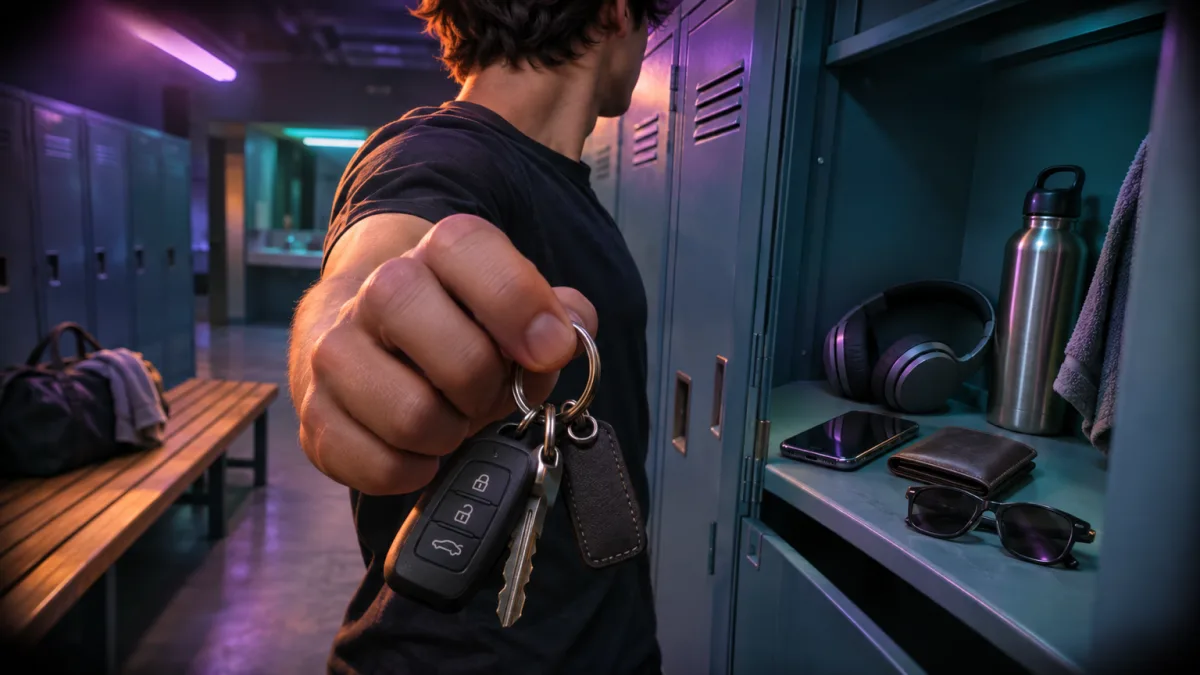
End of Watch AI: Make the Locker Scene Trend Your Own Way
Learn how to join the End of Watch AI trend using one photo and your own filmed clip, with step-by-step prompts and frame alignment tips for clean cuts.
You have seen the clip: someone stands in a locker room, stares into a handheld camera with a completely straight face, and holds up one item after another like a product demo nobody asked for. You want your own. So you open a template, and it asks for two things: your photo, and a clip cut from a 2012 movie.
That second upload is the catch. Most End of Watch AI tutorials tell you to feed the original film scene into a motion tool so your face lands on an actor's performance. It works, but it puts someone else's footage and someone else's acting inside your video.
This guide takes the other route. You film the reference clip yourself, with your own items, and the AI only has to move your character the way you moved. The steps below reflect a code and configuration review of tools available on Vogoo today (no actual render tests were run), with limits derived from current product specifications. Background on the film and the trend comes from the sources at the end. Vogoo has no connection to the film, its studio or its cast. Last checked on 2026-11-11.
What is the End of Watch AI trend?
The End of Watch AI trend is a short vertical video where a person, usually generated from one photo, re-enacts the locker room gear check from the film End of Watch. The character looks into a close handheld camera and shows items to the lens one at a time, deadpan. On TikTok the same format also goes by "Jake Gyllenhaal police locker scene" and "locker scene trend", and tutorial posts there point viewers to motion-transfer templates that copy the scene onto an uploaded photo.
People have remixed it well beyond police gear, ranging from everyday carry items to toy and gym gear swaps. The joke is the delivery, not the equipment.
Where the locker scene comes from
End of Watch is a 2012 American film written and directed by David Ayer, starring Jake Gyllenhaal and Michael Peña as two Los Angeles police officers. It opened in US theaters on September 21, 2012, according to Wikipedia.
Two details from the film explain why the scene became a template:
- The camera is part of the story. Gyllenhaal's character records his shifts for a college class, and much of the film was shot found-footage style, including a handheld camera the actor operated himself. That is why the locker scene looks like a selfie video, not a movie shot.
- The scene is a show-and-tell. In the film's locker room, an officer shows off his gear to the camera item by item.
We could not find a primary source that dates the first meme use or the first AI version. Marketing pages for AI tools give different start dates, and none of them cite evidence, so this guide does not repeat them.
Why the usual method is the risky one
Most template pages run the trend the same way: upload your photo plus "a matching reference clip" of the film scene, then let motion control copy the performance.
Three things go wrong with that.
- The reference is studio footage. You are uploading and processing a clip from a copyrighted film. Your output inherits its framing, timing and often its audio.
- The performance belongs to real actors. Motion transfer copies an actor's specific gestures and expressions. Add a prompt like "make me look like him" and you are into likeness territory.
- The scene has two people. A second officer stands behind the lead. Vogoo's Motion Control AI page asks for one performer in frame, because two bodies split the motion signal. Templates built on the original clip have to work around this.
None of this is legal advice, and rules differ by country and platform. The practical point is simpler: you do not need the film clip. The format is "straight face, close camera, one item at a time". You can perform that yourself in twenty seconds.
| Film clip as reference | Your own clip as reference | |
|---|---|---|
| Whose footage is processed | The studio's | Yours |
| Whose performance is copied | The actors' | Yours |
| Items shown | Police gear from the film | Whatever you pick |
| People in frame | Two | One, which tracks better |
| What makes it funny | Recognition | Your own punchline |
How to make an End of Watch AI video (step by step)
You need one clear photo of yourself and a phone. Plan a clip of 10 to 15 seconds.
1. Pick your five items
The trend works when the items say something about you. Lay out four or five everyday things: car keys, headphones, a water bottle, a gym card, your worst snack. Leave out weapons, replica weapons, police uniforms and badges. Realistic clips of a private person in police gear can read as impersonation, and platforms treat weapons content more strictly.
2. Film your own reference clip
Prop your phone at chest height or hold it at arm's length. Then:
- Stand so your head, shoulders and torso are visible.
- Look into the lens. Bring one item up toward the camera, hold it for a beat, lower it, pick up the next.
- Keep a straight face. Glance to the side once if you want the "partner" beat.
- Record it as one take.
Keep the take between 3 and 30 seconds, because that is the range Motion Control AI accepts, and avoid cuts: its page notes that hard cuts and freeze frames weaken tracking. Save it as MP4 or MOV under 100 MB.
3. Build your locker room character
Open image to image, upload a front-facing photo of yourself, and describe an original locker room. A prompt that keeps your face stable:
Keep the same person, face, skin tone and hairstyle from the photo. Waist-up shot in a plain staff locker room with blue-grey metal lockers and a wooden bench, facing the camera, arms relaxed and visible, wearing a plain dark t-shirt. Harsh overhead fluorescent light, slight wide-angle handheld look, 9:16 vertical. No text, no logos, no badges, no uniform, no other people.
Frame it the way you framed your reference clip. If your video is chest-up, the image should be chest-up too. Mismatched crops are the most common reason motion transfer invents limbs. Export as PNG or JPEG under 5 MB.
Want a different outfit without regenerating the whole scene? The clothes changer AI swaps clothing on an image you already like.
4. Transfer your performance with Motion Control AI
Go to Motion Control AI and upload both files: the locker room image as the character, your own take as the reference video. Then choose a preset. The tool offers Kling 2.6 and Kling 3.0, each at 720p or 1080p. Kling 2.6 is faster and uses fewer credits, and it is usually enough for steady upper-body gestures like these. Run the first pass at 720p, and only move to 1080p once the face and timing look right.
The prompt box is optional. Leave it empty to follow your take exactly, or add one line for mood:
Handheld camcorder footage, cold fluorescent locker room light, slight grain, serious expression throughout.
The finished clip matches the length of your reference. Check three things before you keep it: the face during head turns, the fingers around each item, and whether each item stays the same object from start to finish.
5. No reference clip? Use image to video instead
If you would rather not film yourself, take the locker room image into image to video and describe the action. Clips there run 2 to 20 seconds depending on the model. A prompt to start from:
Handheld selfie-style shot. The person looks into the lens with a deadpan expression, lifts a set of car keys toward the camera, holds for a moment, lowers them, then lifts a pair of headphones. Small natural head movement, locker room background stays still.
Expect less precise timing than motion control, because the model is inventing the movement. Two items per clip is more reliable than five.
6. Add sound, captions and the AI label
Motion Control AI has no audio setting, so the clip comes out without a soundtrack you chose. Add the trending sound inside TikTok when you post, which keeps the music inside the platform's own library. For other platforms, generate an original backing track in text to music.
TikTok requires creators to label realistic AI-generated content, and a photoreal person in a locker room falls under this rule. Be sure to turn on the platform's AI-generated content label before posting.
End of Watch AI prompts to copy
Swap the bracketed parts and keep the rest.
Everyday carry version (character image):
Keep the same person and face from the photo. Chest-up, standing in front of an open metal locker, [plain grey hoodie], facing the camera with a neutral expression, hands visible at chest height. Fluorescent light, handheld wide-angle feel, 9:16. No text, no logos, no uniform, no weapons.
Gym version (character image):
Keep the same person and face from the photo. Gym changing room with wooden lockers and a towel on the bench, [black training top], facing the camera, serious expression, arms visible. Cool overhead light, 9:16. No text, no logos, no other people.
Pet or mascot version (character image):
[A golden retriever] sitting upright on a locker room bench facing the camera, head and front paws clearly visible, plain lockers behind, fluorescent light, 9:16. No text, no logos.
Image to video motion line:
The subject looks at the camera without smiling, raises [a water bottle] toward the lens, pauses, lowers it and nods once. Handheld camera with slight shake. Background unchanged.
What it costs on Vogoo
This motion control workflow requires credits. The image generation and motion control steps in this guide require credits, with motion control billed based on duration, resolution, and selected tier. The exact credit cost is calculated on-screen and displayed directly on the Generate button before you run generation. See the pricing page for current plans and credit packages.
If you want the cop-movie look
Some people are here for the genre, not the locker room. For original bodycam and dashcam-style clips with invented characters, Vogoo's police chase AI page has prompts and model picks. For another template-style trend built from your own photos, see hotel lobby AI.
Quick checklist before you post
- Your own photo, your own reference take.
- Four or five items that mean something to you.
- Matching crop in the image and the video.
- No actor names in prompts, no film clips, no film audio uploads.
- No uniforms, badges or weapons.
- AI label switched on.
FAQ
What is the End of Watch AI trend?
It is a short AI video in which a person generated from a photo re-enacts the locker room gear check from the 2012 film End of Watch: a close handheld camera, a straight face, and items shown to the lens one at a time.
Which movie is the locker scene from?
End of Watch (2012), written and directed by David Ayer and starring Jake Gyllenhaal and Michael Peña.
Do I need the original movie clip to make it?
No. The format is a deadpan show-and-tell to a close camera. Film your own 10 to 15 second take and use that as the reference video, so no film footage or actor performance is involved.
Can AI make me look like the actor?
You should not try. Copying a real person's likeness without permission is a legal and platform-policy risk, and this guide's workflow keeps your own face from start to finish.
Is there a free End of Watch AI generator?
No. This motion control workflow requires credits. The exact credit cost for generating motion-controlled video clips is shown on the Generate button before generating.
Why does my result have warped hands?
Usually the crops do not match, or the item moves too fast. Reframe the image and the reference clip to the same chest-up view, hold each item still for a beat, and try Kling 3.0 for fast hand movement.
Sources
- Wikipedia — End of Watch: director, cast, release date, and found-footage camera setup details.
- Kling AI — Motion Control User Guide: reference video duration requirements (3–30s), framing recommendations, and motion transfer constraints.
- TikTok — Community Guidelines: Integrity and Authenticity: policy requiring creators to label realistic AI-generated content.
Feature capabilities and credit pricing are subject to current on-screen specifications. Vogoo is not affiliated with the film End of Watch, its producers, its distributor, its cast, or TikTok.
Author

Categories
More Posts
How to Find the Aspect Ratio of a Screen or Image (3 Ways)
How to find the aspect ratio of your screen or image: 3 ways — system settings, file info and editor settings — plus a resolution-to-ratio table.
FLUX 3 vs Seedance 2.5: Which Fits Your Clip?
FLUX 3 vs Seedance 2.5 compared by job: clip length, native audio, reference control, and exact per-clip credit costs on one Vogoo account, plus a verdict.
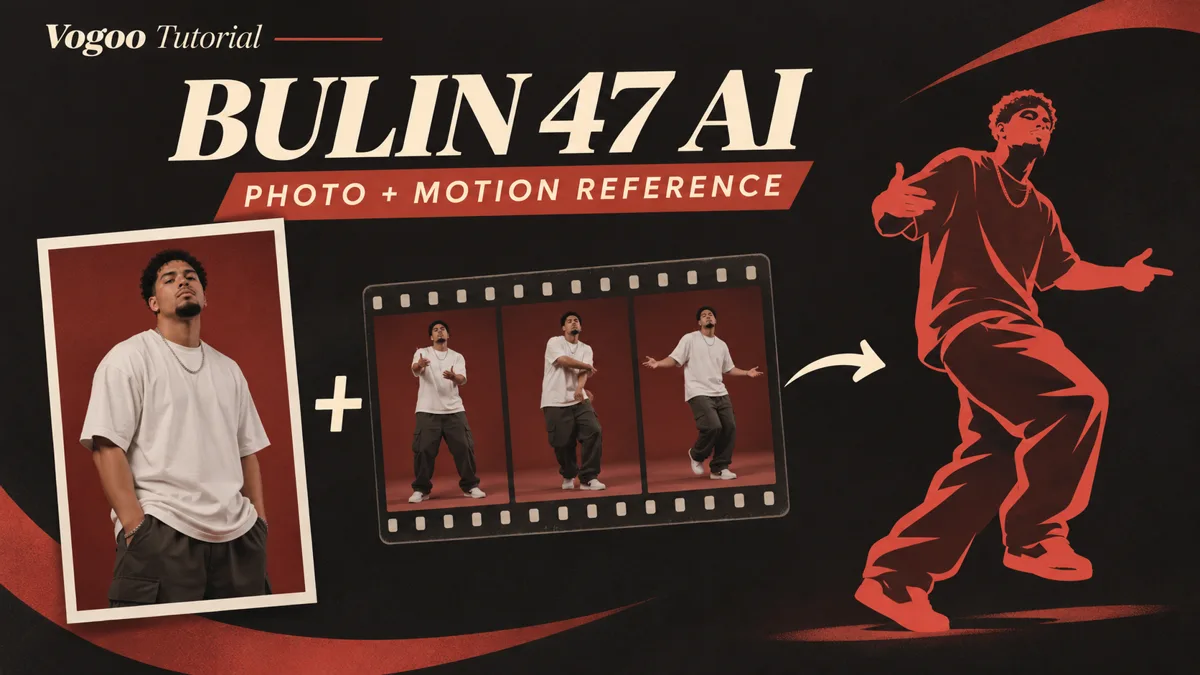
Bulin 47 AI: Use a Photo and Motion Reference
Pair a character photo with your own motion reference clip using Vogoo's motion control workflow to direct a custom freestyle dance video.
Newsletter
Join the community
Subscribe to our newsletter for the latest news and updates