Bulin 47 AI: Use a Photo and Motion Reference
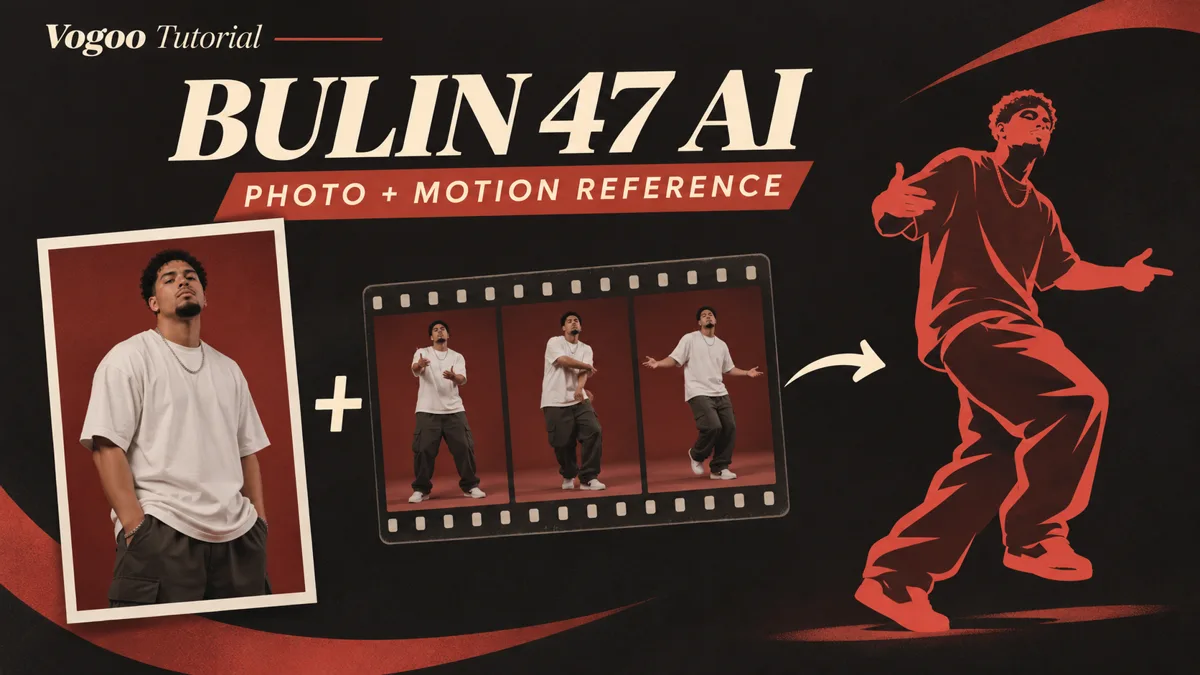
Pair a character photo with your own motion reference clip using Vogoo's motion control workflow to direct a custom freestyle dance video.
If you are exploring Bulin 47 AI dance trends, you are likely looking to see a custom character perform high-energy Bulin 47 freestyle street choreography.
This guide covers a different creative approach: generating an original performance by pairing your own character photo with a driving motion reference clip. This workflow uses Vogoo's motion control tool rather than an automated face-swap template. A packaged Bulin 47 template is not offered in this workflow, and the tool does not provide automatic lip-syncing, guaranteed facial fidelity, or exact choreography locking. The explanations here reflect a review of current tool controls rather than a generation test, and final visuals will vary across different source files.
Choosing the Right Approach for Your Goal
Before preparing assets, clarify your creative objective. Inserting a face into pre-rendered footage requires a completely different approach than directing a character with your own motion reference:
| Project Objective | Quick Face Replacement on Fixed Footage (Not Taught Here) | Custom Character with Own Reference (This Workflow) |
|---|---|---|
| Primary Result | Swaps a portrait onto a pre-existing viral video | Directs a custom character using motion extracted from your reference clip |
| Required Assets | Typically a single face photo | Two mandatory inputs: a character photo and a driving motion clip |
| Choreography Source | Locked to the movements of the original dancer in the clip | Driven by whatever clear dance performance you supply |
| Framing Alignment | Constrained to the original clip's camera perspective | Guided by matching your photo to your driving clip's framing |
| Scene Styling | Fixed to the original clip's background environment | Open to custom lighting and backdrop suggestions via text prompts |
If your goal is an instant remake of a specific viral clip, a fixed face-swap template is built for that purpose. If you want to direct an original character using dance moves you select or record yourself, reference motion control provides the necessary flexibility.
Tool Capabilities and Practical Settings
Vogoo's motion control workflow provides specific controls to configure your generation:
- Dual-Asset Requirement: Generating video requires both a static character photo and a driving reference video clip. The tool cannot process a request with only one asset.
- Engine Options: The interface provides access to Kling 2.6 and Kling 3.0. Check the current model controls before choosing your settings.
- Resolution Choices: You can export your video at either 720p or 1080p.
- Duration Limits: The tool catalog lists durations ranging from 3 to 30 seconds. However, always follow the active limits shown in the live studio uploader, as practical clip thresholds depend on current system availability.
- Audio Handling: This motion control workflow does not include audio-generation controls. Do not assume the system will strip audio from your reference clip or produce a silent file. Always inspect your rendered video after downloading, then add your chosen, permitted music or sound effects in an external editor.
Framing and Asset Checklist
Generative motion tools translate physical movements probabilistically. While visual distortions cannot be completely prevented, following this checklist helps support cleaner tracking:
- Match Subject Framing: Keep framing consistent across both assets. If your reference dancer is framed from the waist up, use a waist-up character photo. Supplying a close-up portrait alongside a full-body dance clip forces the model to invent missing limbs, which frequently causes visual artifacts.
- Feature a Single Subject: Use a reference clip with one performer against a clean background. Multiple people or sudden camera cuts will confuse motion tracking.
- Maintain Clear Visibility: Choose footage with steady lighting and minimal motion blur. Dark clothing and shadowed limbs make tracking less reliable.
- Minimize Loose Props: Loose clothing, hats, or hand accessories can morph or disappear during fast movements.
Step-by-Step Motion Control Guide
Follow these steps to set up your motion generation:
- Prepare Your Reference Clip: Select or record a clear, continuous freestyle dance clip. Ensure you hold the necessary rights or permissions to use the footage. Trim the clip to focus on the primary routine.
- Select Your Character Photo: Choose a well-lit image of your character that matches the posture and camera distance of your reference video.
- Upload Assets to the Studio: Navigate to Vogoo's Motion Control AI interface. Add your character image to the photo input and your driving dance clip to the video input.
- Select Engine and Resolution: Pick Kling 2.6 or Kling 3.0, and configure your output to 720p or 1080p.
- Add Optional Scene Direction: Enter a text prompt if you want to suggest background scenery or lighting styles. Prompts serve as creative suggestions rather than guarantees; the physical choreography will follow your reference clip.
- Inspect the Rendered Output: Review your generated clip frame by frame, checking hand stability, limb boundaries, and edge separation against the background.
- Finalize Audio and Review Disclosure Guidance: Check your downloaded video for sound, then sync your audio track in an external editing app. If you plan to post realistic AI media on platforms like TikTok, check the platform's current labeling guidance regarding AI disclosures.
Untested Freestyle Scene Prompt
In a reference motion workflow, text prompts guide visual atmosphere rather than body choreography. The following prompt is an untested illustrative example:
Same character styling and clothing as the reference image, dancing in an open warehouse studio with polished concrete floors, warm side lighting, soft shadows, steady eye-level camera view, clean background, realistic depth of field.Further Reading
For another perspective on reference-guided video workflows, explore Stateside Dance AI, which examines choreography pairing and motion interpretation across related performance styles.
To experiment with motion transfer using your own assets, visit Motion Control AI.
Frequently Asked Questions
Does this workflow include an official Bulin 47 template?
No. Vogoo does not offer a pre-packaged Bulin 47 template. This workflow is an open motion control tool where you supply both your character photo and your driving motion clip.
How does the tool handle sound?
If you are searching for Bulin 47 lyrics AI, note that this motion workflow does not write or supply lyrics or the original recording, and audio-generation controls aren't offered. Simply inspect your downloaded file and add your own or permitted audio in an editor.
Can I generate motion using only a character photo?
No. The motion control tool strictly requires two assets: a character photo and a driving reference video.
What clip lengths are supported?
The catalog lists durations from 3 to 30 seconds, but you should always follow the active limits shown in the live studio uploader when submitting your assets.
Do I need to label my motion video on social media?
Consult your destination platform's current AI media policies before sharing. Many platforms, including TikTok, provide dedicated disclosure settings for content depicting realistic AI-generated people.
Sources
- Vogoo Studio — Motion Control AI: Tool interface controls, input fields, and resolution options.
- Kling AI — Motion Control user guide: Official guidance on reference images and motion-reference videos.
- TikTok Support — About AI-generated content: Current platform documentation on AI content labeling and creator disclosure settings.
Author

Categories
More Posts
How to Turn a Photo Into an Album Cover with AI
Use an album cover generator from photo mode: upload a show photo, restyle it into square cover art, and export at Spotify's 3000×3000. 5-step workflow.
AI YouTube Banner Maker: One Prompt to a 2560×1440 Channel Banner
Use a YouTube banner maker AI to turn one prompt into a 2560×1440 banner. Five copy-paste prompts for gaming, podcast, music, vlog, and business channels.
Seedance 2.5 Video Editing: The Complete Guide
Seedance 2.5 video editing, explained: a 3-step prompt formula to change any element — VFX, outfits, style, age — while the rest of the frame stays locked.
Newsletter
Join the community
Subscribe to our newsletter for the latest news and updates