
I Wanna Love You AI: Make a Pet Music Video
Learn how to create a suited pet music clip with the i wanna love you ai workflow by separating portrait staging, gentle motion, and licensed audio pacing.
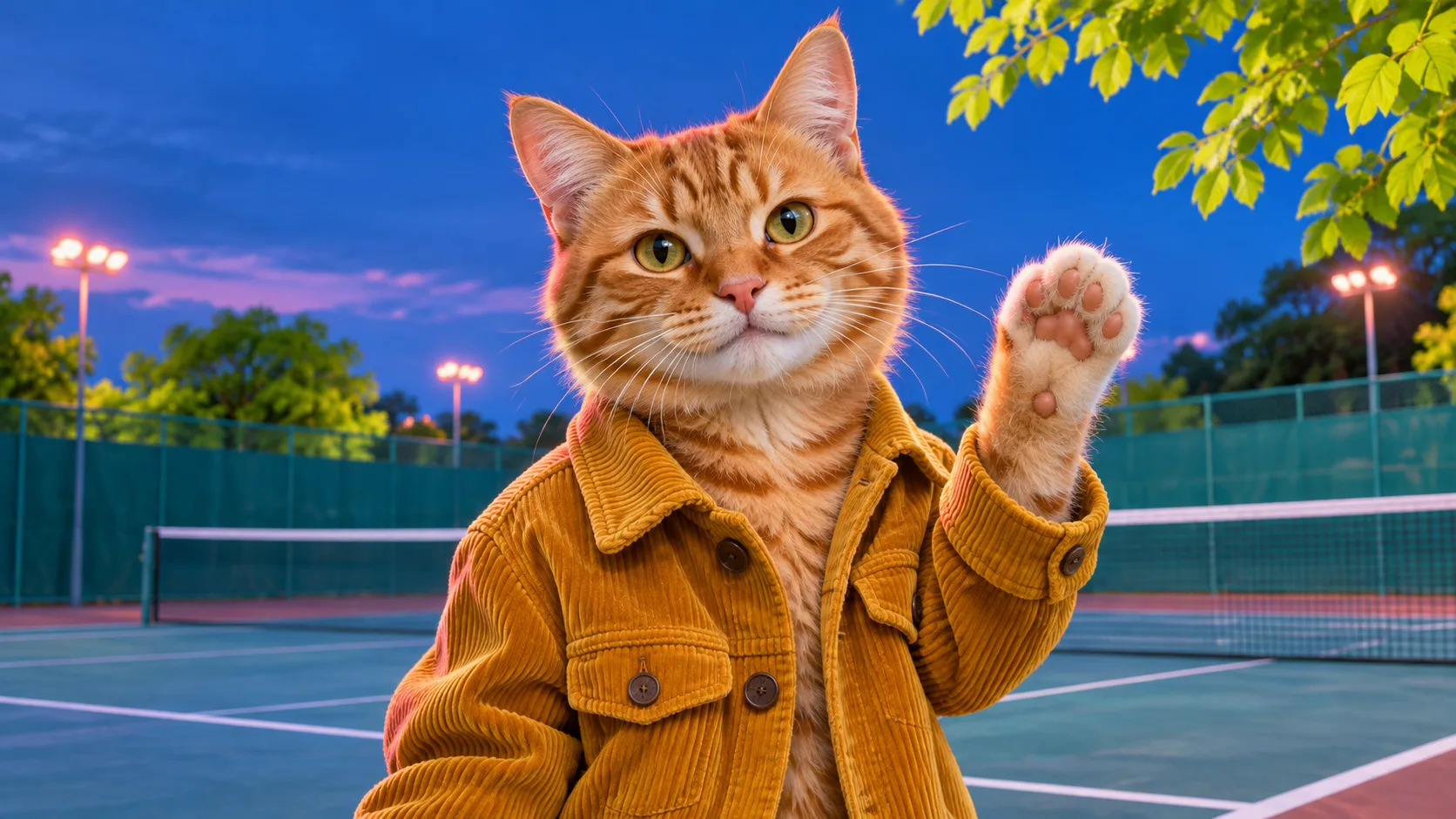
Cover: an editorial illustration of a tabby cat in a mustard jacket, raising a paw beside a tennis court. Concept illustration: This image is an editorial concept rendering, not an automated output of a single push-button pipeline or walkthrough result.
Your suited pet portrait looks right, but the moving version changes a paw, blurs the fur, or lands late against the music. If that is where your i wanna love you ai edit gets stuck, check the still image, motion and soundtrack separately before making another complete clip.
This tutorial gives you a production sequence and a stop/go checklist for an original pet music edit. Inspecting a still before adding motion makes it easier to catch a changed face, broken paw or awkward collar before the editing stage.
Trust Scope and Verification Baseline
Platform features and documentation cited in this guide were verified on 13 November 2026. The sample prompts provided are baseline editorial recommendations and have not been tested as a complete, automated end-to-end routine.
This walkthrough covers a dressed portrait, subtle motion and an external music edit. Exact choreography and animal mouth movements synchronized to lyrics have not been validated here. If those are essential, choose an animal-capable workflow and test it with your chosen audio before committing to a full edit.
Plan Photo, Motion, and Music as Separate Passes
For an original take on the i wanna love you ai trend, plan three passes with a visible result to inspect at each stage. That gives you a specific place to return when the outfit, movement or rhythm needs work.
Divide the edit into three stages:
- Photo Staging: Establish a clean character portrait using an image reference to preserve breed markers and clothing structure.
- Motion Synthesis: Animate a single, gentle motion while keeping camera positioning stable.
- Audio Alignment: Import the silent clip into an external editor to align visual beats with licensed music.
Workflow Decision Matrix
Review this decision matrix before generating assets to choose the right workflow for your project.
| Creative Goal | Recommended Workflow | Target to Inspect | Technical Limitations |
|---|---|---|---|
| Static Portrait | Image-to-image reference upload with styling prompt | Suited portrait; compare coat markings to the reference | Static asset with no motion |
| Simple Motion Clip | Two-step generation: validated still image animated with gentle gesture | Clip with one paw lift or head nod to inspect | Check for feature drift while the pet moves |
| Exact Singing Routine | Multi-tool pipeline combining character design with dedicated phoneme animation | Experimental talking character | Requires an animal-capable tested lip-sync solution and cannot be promised here |
Verified Platform Capabilities and Likeness
Vogoo supports text-to-image generation as well as image-to-image workflows with reference photo uploads in the reference-image editor. When uploading a pet photo, the reference guides general likeness—such as eye color, coat markings, and ear shape—but does not guarantee a pixel-perfect replica. Variations in lighting and garment styling will affect the final result.
Use Vogoo for the image and motion passes described here. Add and time the selected soundtrack in the external editor used for the final pass; this tutorial supplies no audio file.
Step-by-Step Creation Walkthrough
Step 1: Choose a Clean Pet Reference
Select a sharp, evenly lit photograph of your cat or dog. Ensure both eyes are visible, facial markings are clear, and the pet faces forward. Avoid blurry images or photos where collars and harnesses obscure the chest. A clear reference gives you a baseline for comparing the output.
Step 2: Generate the Suited Still Portrait
Open the image generation interface to establish your character. Aim for a suited pet portrait with paws clearly separated from the sleeves. Use a selfie camera angle; a phone prop is optional.
Use this sample prompt:
Use the pet in the reference photo as visual guidance for coat markings, eye shape and ear silhouette. Create a close-up selfie-angle portrait in a tailored mustard jacket, with both front paws visible and one lifted near the chest. Soft evening light, clear whiskers, distinct paws and a natural collar boundary.
Step 3: Run the Pre-Motion Inspection Checklist
Inspect your still portrait before animating. Do not proceed if any of these checkpoints fail:
- Paws: Check that paw pads stay distinct from the jacket. If you include a phone, inspect the grip and the boundary between paw and device.
- Ear Silhouette: Confirm ear edges are crisp against the background.
- Collar and Lapels: Verify clean lines between fabric, collar, and neck fur.
- Whiskers and Snout: Check that facial symmetry and whisker pads remain intact.
Fix visible defects in the still before adding motion. Upload your pet's photo to Vogoo Image-to-Image to generate your suited still before proceeding.
Step 4: Animate Gentle Motion
Open Vogoo Image-to-Video with the still you inspected. Start with one controlled action, such as a gentle paw lift. Add extra movements only after reviewing the first result.
Use this sample motion prompt:
Animate the supplied pet portrait with a steady camera. The pet gently lifts one front paw once, then holds the pose. Keep the head angle and jacket placement close to the starting image. Use restrained movement and preserve the visible coat markings as closely as possible.
Step 5: Prepare Licensed Audio in an Editor
Keep the visual pass separate from the selected soundtrack. If the generated clip already contains audio, mute that track in the editor before adding your chosen music. Refer to the official CapCut audio editing guide to learn how to add and arrange background music. Always select licensed audio; check the YouTube Audio Library documentation to verify attribution and usage rules.
Step 6: Align Motion to the Musical Beat
Import the visual clip and your selected audio track into the editor. Producing an engaging i wanna love you ai video relies on aligning one visible action with a musical cue. Trim the clip so the paw lift or head tilt matches a strong beat or vocal entry. Preview the timeline twice: once with audio to check rhythm, and once on mute to ensure motion stability.
Step 7: Export and Verify Disclosure Guidelines
Export your finished video without relying on guaranteed presets or formats. Before sharing online, check platform synthetic media policies. Consult official YouTube synthetic media disclosure guidelines to understand how and when to label generated content transparently.
Troubleshooting Common Artifacts
Use this table to resolve common visual issues encountered during generation.
| Symptom | Probable Cause | Action |
|---|---|---|
| Paws merge into phone casing | Complex limb interaction in motion prompt | Simplify prompt to a static paw grip and animate head tilt only |
| Facial fur warps during motion | Excessive motion intensity or camera movement | Keep camera stable and specify consistent fur texture in prompt |
| Suit lapels stretch unnaturally | Unclear clothing boundaries in base image | Regenerate base still with distinct garment seams before animating |
| Action misses the beat | Video cut to arbitrary duration | Place timeline markers on audio beats before trimming video clips |
Frequently Asked Questions
Is the original soundtrack included in generation?
This tutorial includes no music file or licence to a recording. Choose an audio source permitted for your intended upload and add it during the editing pass. Check the selected generation model separately if you want it to produce its own audio.
Does the animated pet remain identical to the reference photo?
The reference photo guides breed markings, eye shape, and coloration, but cannot guarantee an identical match. Styling changes and motion synthesis naturally introduce subtle visual differences.
Can this process generate mouth movements matching lyrics?
Synchronized animal mouth movement has not been established in this walkthrough. Test an animal-capable lip-sync workflow with your chosen audio if mouth timing is essential; a movement prompt alone should not be treated as proof of lyric alignment.
Does this workflow work better for cats or dogs?
Try the same preparation for either animal. Inspect the muzzle, whiskers, ears and coat markings in the still output before deciding whether to animate it. This walkthrough does not establish which species gives better results.
Final Production Takeaway
Build your pet music edit one pass at a time. Check the still portrait first, then review one simple movement before timing the soundtrack. Start designing your character with Vogoo Image-to-Image, then generate motion with Vogoo Image-to-Video.
Sources
- Vogoo Image-to-Image — Official reference-image editing interface.
- CapCut Audio Editing Guide — Official guide on adding and arranging audio tracks on video timelines.
- YouTube Audio Library — Official information on track licensing and attribution terms.
- YouTube Synthetic Media Disclosure — Official guidance regarding transparency and disclosure for AI-generated content.
Documentation Scope: Platform features and official help documentation were reviewed on 13 November 2026. This tutorial provides editorial workflow guidance; third-party software and licensing terms are governed by their respective providers.
Author

Categories
More Posts
FLUX 3 vs Seedance 2.5: Which Fits Your Clip?
FLUX 3 vs Seedance 2.5 compared by job: clip length, native audio, reference control, and exact per-clip credit costs on one Vogoo account, plus a verdict.
AI Image Generator Custom Size: Exact Pixels
Learn how to choose custom AI image dimensions, check exported pixels, and avoid cropping surprises. Includes a real Vogoo size test and practical fixes.
Is GPT Image 2.5 Free? Limits and Fine Print
Is GPT Image 2.5 free? Yes in ChatGPT on every tier — but OpenAI publishes no daily cap, every image carries C2PA provenance, and the API bills by token.
Newsletter
Join the community
Subscribe to our newsletter for the latest news and updates