
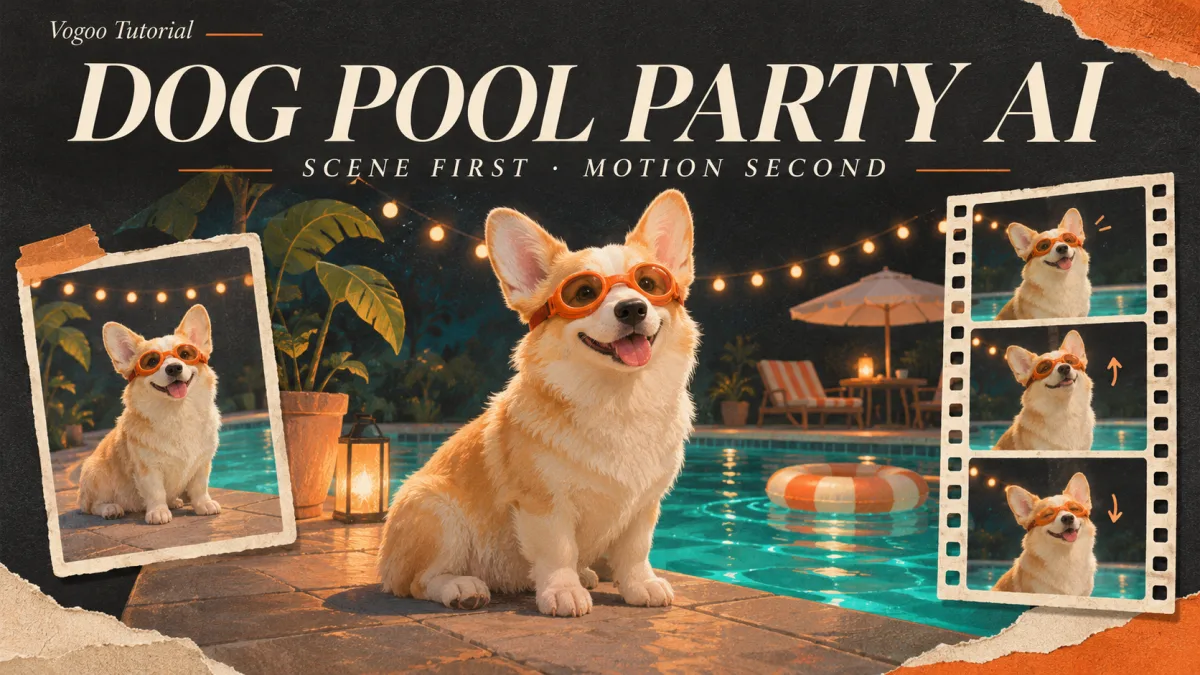
Dog Pool Party AI: Build a Scene, Then Animate It
Learn how to build a dog pool party AI video by staging a balanced still image first before animating subtle motion with image-to-video tools.
A dog pool party AI scene can combine swimming goggles, a poolside setting, and a fictional or photo-inspired dog. Build the scene first so you can inspect the accessories, paws, and background before adding motion.
One practical approach is to separate the scene design from your motion instructions. By designing and approving a still image first, you resolve composition, color, and wardrobe before prompting camera movement or physical action. This tutorial is based directly on live studio generator controls and primary video prompting principles. Note that all sample prompts shared here are untested editorial suggestions rather than guaranteed output templates.
Stage 1: Compose the Pet Scene Before Adding Motion
Start by choosing a still frame. You can begin either with a completely fictional, illustrated dog character or by adapting an existing picture of your own pet.
If you choose to work from an existing pet photograph, navigate to Image to Image to introduce the summer theme. Upload your reference image and instruct the editor to add swimming goggles, wet fur accents, and a sunlit pool environment. Keep in mind that generative editing tools redraw features rather than locking identity; markings and colors may shift, so treat the result as an inspired interpretation rather than an exact replica.
Focus on a single dog before introducing background crowds or floating pool toys. Setting up clear contrast between the subject and the pool edge gives you a clear composition to review.
Pet Composition Checklist
Use this checklist to inspect your candidate image before approving it for motion:
| Visual Element | Staging Recommendation |
|---|---|
| Ears & Silhouette | Keep natural ear posture visible above swim goggle straps; avoid wide bands that obscure ear bases. |
| Goggle Placement | Choose modest, translucent lenses that leave the eyes visible without covering the muzzle or nose bridge. |
| Fur & Markings | Favor defined coat textures and natural body contours over busy patterns that blend into water reflections. |
| Paws & Pool Coping | Position front paws flat on concrete, stone, or tile decking to establish clear spatial ground contact. |
| Pool Reflections | Choose gentle, directional water ripples with clean edges rather than chaotic foam or heavy splash spray. |
Untested Still Prompts
When generating your initial still frame from scratch or styling an image, consider these prompt structures:
Realistic Pet Still (Untested Suggestion):
A happy golden retriever sitting calmly at the edge of an outdoor swimming pool, wearing small translucent blue swimming goggles over its eyes with ears perked up naturally. Bright midday summer sunshine, clear turquoise pool water with soft ripples, wet paw prints on clean beige stone coping, shallow depth of field, natural pet photography style.
Stylized Anthropomorphic Concept (Untested Suggestion):
A stylized, expressive French bulldog relaxing on a bright yellow foam pool float, wearing miniature retro sunglasses and a tropical floral collar. Vibrant 3D digital animation style, saturated pastel colors, warm afternoon rim lighting, clean resort swimming pool background.
Inspect your generated still carefully. If the goggles cover the entire face or the paws blur into the water, regenerate or adjust the still image before moving on.
Stage 2: Animate the Approved Still with Controlled Motion
Once you are satisfied with your still composition, export the image and load it directly into Image to Video. Because the lighting, wardrobe, and character appearance are already established by the image input, your text prompt can focus on movement and camera work.
Avoid asking the model to perform elaborate human dance choreography or rapid bipedal movements. Treat complex footwork as an experimental request and inspect the dog’s joints and accessories in the result. Instead, focus on subtle, naturalistic motion: an alert head tilt, soft panting, or a gentle weight transfer from one paw to the other, framed by a steady camera.
If you are developing a stylized anthropomorphic character, you can request slightly more expressive movement, but prioritize smooth pacing over fast acrobatics.
Ready to animate your approved scene? Open Image to Video to upload your still frame and configure your motion prompt.
Untested Motion Prompt
Use a simple, sequential motion description that emphasizes physical restraint:
Subtle Pet Motion (Untested Suggestion):
Static camera at eye level. The dog remains seated at the pool edge, gently tilting its head to the right and panting softly as its ears shift slightly in a mild summer breeze. Subtle water ripples drift slowly across the background swimming pool. Smooth, realistic animal motion, no sudden limb movements, stable accessories.
Evaluate your generated video in three stages: check the opening frame to ensure goggles remain intact, inspect the midpoint for leg and ear coherence, and examine the final second for drifting textures. If an artifact appears, adjust only one variable in your prompt per retry.
Frequently Asked Questions
Can I use a photo of my own dog for the pool party scene?
Yes, you can upload a clear photo of your pet into Image to Image to add pool party accessories and poolside backgrounds before moving to video. Keep in mind that generative tools redraw patterns and structures rather than preserving exact markings, so the output will be an artistic adaptation rather than a cloned portrait.
Will this workflow reproduce an exact viral dog pool party dance?
No. This tutorial teaches an original scene-building and animation workflow rather than a clone of any specific viral video or choreographed routine. This walkthrough does not measure choreography matching. Try a modest gesture first and inspect the result rather than assuming it matches a particular routine.
What should I check if goggles or fur warp during animation?
Inspect the still image first, then try fewer motion requests and a steady camera. Compare the opening, middle, and ending frames for changes in the goggle straps and coat markings. These are troubleshooting suggestions, not guaranteed fixes.
Does the generated video include pool party background music and sound?
Sound generation depends entirely on the active video preset and configuration chosen in the generator interface. Some models expose audio-generation controls and others do not. Check the current controls and inspect your downloaded file, then add separately permitted music in an external editor if needed.
Which model settings and controls should I check?
Select the standard image-to-video interface in your workspace, adhering to the live duration sliders, aspect ratio selectors, and preset toggles displayed in your active session. Available tool controls vary depending on the underlying provider configuration, so use the real-time controls in the studio rather than relying on external benchmark recommendations.
Bring your summer pet concept to life by designing your character in Image to Image and requesting subtle movement in Image to Video.
Sources
- Vogoo Image to Image – Reference image editing and accessory styling controls.
- Vogoo Image to Video – Still-to-video generation interface and motion prompting controls.
- Google Cloud Video Generation Prompt Guide – Official documentation on structuring generative video prompts across subject, action, context, and camera variables.
Author

Categories
More Posts
Seedance 2.5 vs Seedance 2.0: Every Upgrade Compared
Seedance 2.5 vs Seedance 2.0 compared: 30s one-shot generation, 50 references, audio-only input, precise video editing — and who should actually switch.

AI Transparent Background: How to Get Clean PNGs You Can Actually Use
A practical guide to getting AI transparent background images: native alpha generation vs cutout, PNG vs other formats, and prompts for clean edges.
Kling 3 vs Kling 3 Turbo: What You Lose and Save
Kling 3 vs Kling 3 Turbo on Vogoo: controls, audio, resolution, and credits per clip compared, plus when Turbo is the right draft tool and when it costs more.
Newsletter
Join the community
Subscribe to our newsletter for the latest news and updates