
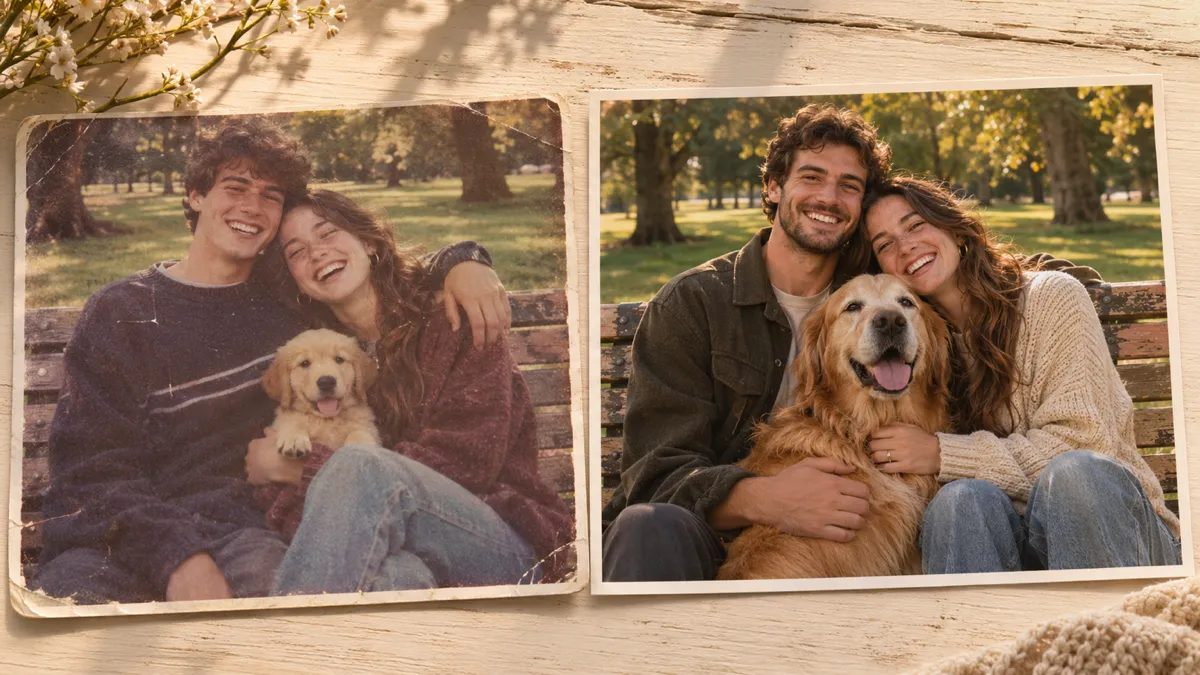
Growing Up Beside You Trend: How to Make Yours
What the Growing Up Beside You trend is, how to build the then-vs-now slideshow for couples, pets or friends, and how to fix blurry old photos so the 'then' side holds up.
You have ten years of photos together. The new ones are sharp phone shots. The old ones are a blurry selfie from a 2014 phone, a screenshot of a screenshot, and a printed photo you scanned at an angle. Put them side by side for the Growing Up Beside You trend and the "now" looks great while the "then" looks like a mistake. That gap is the most common reason these videos feel flat.
This guide covers what the Growing Up Beside You trend is, how to put the then-vs-now slideshow together in a few minutes, and where AI actually helps: cleaning up old photos, adding a little motion to one still, and not much else. We built it from public TikTok posts using the trend, reviewed on 2026-11-04, and from the photo and video tools Vogoo runs. Song details are checked against the album's published track listing.
What is the Growing Up Beside You trend?
The Growing Up Beside You trend is a then-vs-now video: a couple, a pet and its owner, or two friends show an old photo of themselves next to a recent one, usually to mark an anniversary or how many years they have been together. The soundtrack is "Growing Up Beside You" by Scottish singer Paolo Nutini, track 3 on his 2009 album Sunny Side Up, written by Nutini and Dave Nelson. The song's chorus is what gives the trend its name, and the sound is what most people search when they look for the Growing Up Beside You TikTok posts.
Three formats show up again and again:
- The reveal. One old photo, then a cut to the same two people today, often with ages on screen ("17 and 19 → 31 and 33").
- The timeline. Five to fifteen photos in order, from first date to wedding to kids, one per beat of the song.
- The pet version. A puppy or kitten next to the same animal years later, sometimes with the owner aging alongside it.
It is a slideshow trend. You do not need a video generator to take part; a phone, the photos and the sound are enough. AI is optional, and it only earns its place on the weak photos.
How to make a Growing Up Beside You video, step by step
1. Pick photos in pairs, not piles
The trend works when the viewer can compare. Choose photos that match on something: the same pose, the same place, the same pet on the same couch, the two of you in the same order left to right. A then-and-now couple photo pair taken in the same spot hits harder than twenty random snapshots.
For a timeline, five to ten photos is plenty. Fewer, stronger photos read better on a phone screen than a long scroll the viewer swipes past.
2. Fix the "then" photos before you edit anything
This is the step most people skip, and it is where the "then" side usually falls apart. Old phone photos are low resolution, noisy and soft. Scans of printed photos add dust, color cast and a slight blur.
Run the weakest old photos through an AI photo enhancer first. Vogoo's enhancer is set up to sharpen detail and restore faces while keeping identity unchanged, so the result still looks like you at 19, not a smoothed stranger. Two rules keep it honest:
- Enhance, don't redo. If the output changes a face shape, hair or expression, use the original. The point of the trend is that it really was you.
- Keep the era. A 2012 photo can look clean without looking like it was shot on a 2026 camera. Slight grain is fine; it tells the viewer which side is "then."
3. Optional: bring one photo to life
One moving shot in a row of stills catches the eye. Pick the single best old photo, usually the first one, and turn it into a short clip with animate pictures: a small head turn, a smile, a pet's ear twitch. Keep the motion small. Big movement on an old, low-detail photo is where faces start to warp.
If you want more control over the motion, the image to video generator lets you describe it in a prompt ("both people turn toward the camera and laugh, slow push-in"). Use it for one or two shots at most. The trend's charm is real photos, and a fully generated video stops feeling like your story.
4. Assemble the slideshow
Two easy routes:
- TikTok photo mode. Upload your photos as a photo post, then add the sound. Fastest route, but you have less control over timing.
- A video editor (CapCut or similar). Drop photos and any animated clip on a timeline, cut each image on a beat, and export as a vertical 9:16 video. Use this if you mix stills with a moving clip.
Add the song from the platform's own sound library: search "Growing Up Beside You" by Paolo Nutini. Using the in-app sound keeps your post linked to the trend's sound page and avoids the audio being muted later, which can happen with ripped audio.
5. Captions and timing
Put the hook in the first second: "18 and 20 → 32 and 34", "10 years since our first date", or "He was 8 weeks old here". Time the cut to the "now" photo for a lift in the song, not the first beat. Then post. Most versions run 10 to 20 seconds.
Couple, pet or friends: what changes
| Version | What to compare | Photo tip | Where AI helps |
|---|---|---|---|
| Couple then vs now | First photo together vs a recent one | Recreate the old pose in the same spot | Enhance the old selfie; animate the first photo |
| Pet growing up | Puppy or kitten vs the same pet today | Same couch, same bed, same angle | Sharpen motion-blurred baby-pet shots |
| Friends or siblings | School-age photo vs adults today | Same left-to-right order | Restore scanned prints; fix color cast |
| Parent and child | Child on your lap vs child taller than you | Mirror the pose | Enhance old film photos |
If you only have one old photo of the two of you, the reveal format still works: one "then", one "now", ages on screen.
Slideshow only vs AI-enhanced: what you actually gain
Most guides to this trend stop at "add the sound and post." The difference between a forgettable version and one people rewatch is usually the quality gap between the two sides, not the editing.
| Plain slideshow | With enhanced and animated photos | |
|---|---|---|
| Old photos | Soft, noisy, sometimes unreadable on a phone | Faces readable at full screen |
| First second | A still photo | One subtle moving shot that stops the scroll |
| Effort | 5 minutes | About 10–15 minutes extra |
| Risk | None | Over-processing; changed faces if you push it |
Our rule of thumb: enhance every photo where you cannot clearly see faces at full phone size, animate at most one, and leave the rest alone. When the tool changes who someone is, throw the result away.
Want to try the photo side first? Upload your blurriest old picture to the Vogoo photo enhancer and compare it with the original before you start editing.
Mistakes that make the trend fall flat
- Too many photos. Twenty images at one second each is a blur. Cut to the pairs that tell the story.
- Mixed crops. Some photos square, some vertical, some sideways. Crop everything to 9:16 or 4:5 before assembling.
- Over-smoothed faces. If an enhancer makes skin plastic, dial it back or use the original. Viewers notice.
- Fake "then" photos. Generating a younger version of yourself that never existed misses the point of the trend, and comments will call it out.
- Not asking first. It is two people's (or a family's) photos. Check your partner, friend or kid is happy with the old ones going public.
FAQ
What song is used in the Growing Up Beside You trend? "Growing Up Beside You" by Paolo Nutini, from his 2009 album Sunny Side Up. Search the title in TikTok's sound library and use the official track.
Do I need AI to do the Growing Up Beside You trend? No. It is a photo slideshow, so a phone and your photos are enough. AI helps when old photos are too blurry or damaged to read on screen, or when you want one photo to move.
Can I do the trend with my dog or cat? Yes. The pet version, puppy or kitten next to the same animal years later, is one of the most common. Baby-animal photos are often motion-blurred, so they benefit most from enhancing.
How many photos should I use? Two for a reveal, five to ten for a timeline. Fewer, matched pairs read better than a long sequence.
Will an AI photo enhancer change my face? A good one should not, and Vogoo's enhancer is set to keep identity unchanged. Always compare the result with the original; if a face, hairline or expression shifts, use the original photo.
Sources
- Wikipedia — Sunny Side Up (Paolo Nutini album): release date (29 May 2009), track listing and writing credits for "Growing Up Beside You".
- Paolo Nutini — official website: the artist's own site and catalogue.
- TikTok — Growing Up Beside You on TikTok: public posts using the trend, the basis for the formats described above.
Formats and photo tips come from public TikTok posts reviewed on 2026-11-04 and are Vogoo's own observations, not platform guidance. App features and sound availability change by region and over time; check the app for what is available to you.
Author

Categories
More Posts

FLUX 3 vs Seedance 2.5: Which Fits Your Clip?
FLUX 3 vs Seedance 2.5 compared by job: clip length, native audio, reference control, and exact per-clip credit costs on one Vogoo account, plus a verdict.

AI Image Generator Custom Size: Exact Pixels
Learn how to choose custom AI image dimensions, check exported pixels, and avoid cropping surprises. Includes a real Vogoo size test and practical fixes.

How to Make a Twitter Header: 5 Steps That Work Every Time
How to make a Twitter header in 5 steps: set the 1500×500 size, generate or design, protect the safe area, export sharp, and upload without blur.
Newsletter
Join the community
Subscribe to our newsletter for the latest news and updates