A readable middle ground
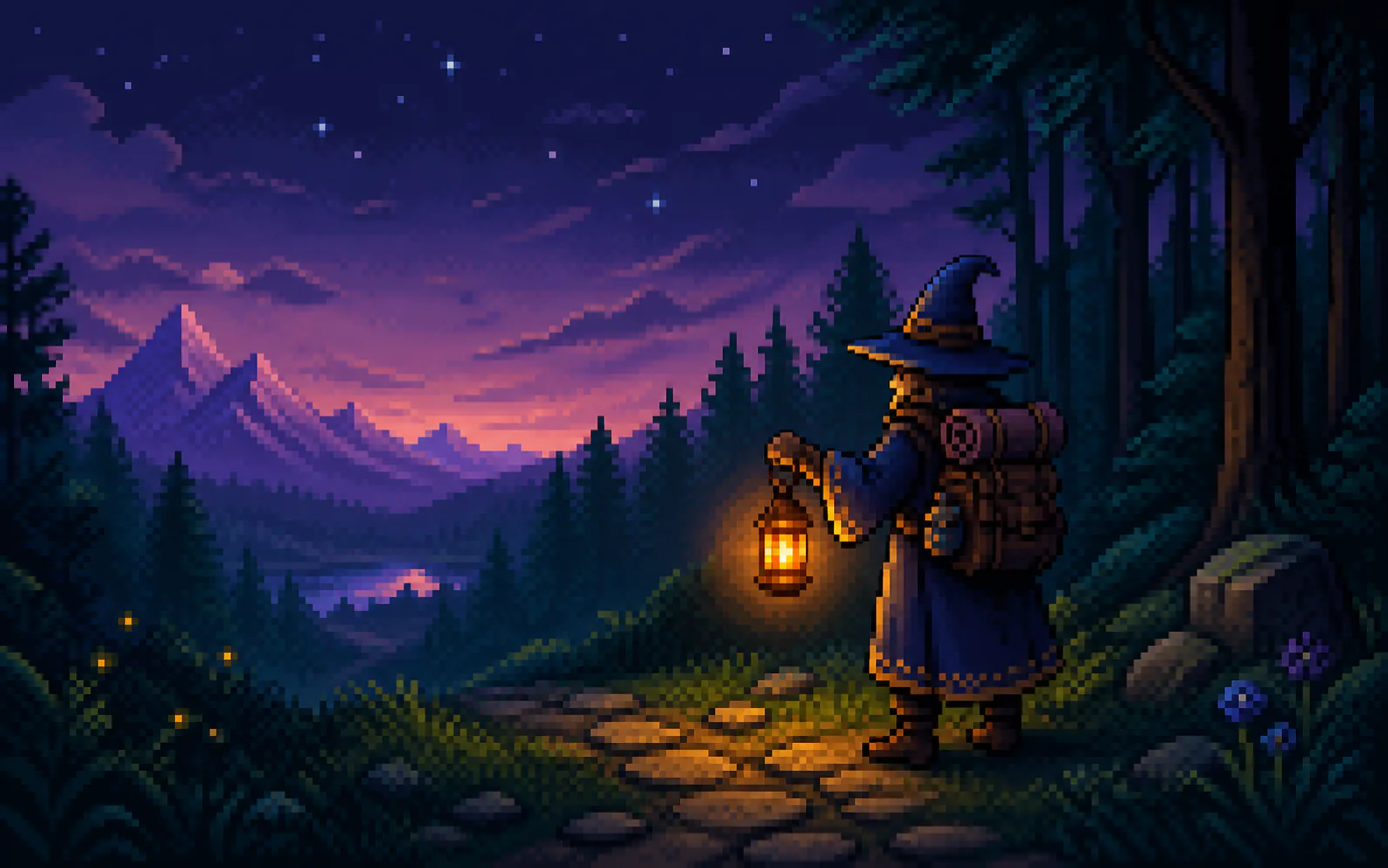
64x64 pixel art has enough pixels for a face, clothing, hands, a prop, and a controlled light source without becoming a smooth illustration.
PIXEL CANVAS / 64 × 64
Build crisp 64x64 pixel art for sprites, portraits, avatars, and game-ready PNGs. Start with an idea or a reference image, then direct the grid, palette, and silhouette in one prompt.
PIXEL ART GUIDE
A 64x64 pixel art generator turns a written idea or reference image into artwork that reads as if it were planned on a 64-by-64 grid. It is useful when a subject needs more expression than a tiny icon but must still look deliberate at game-sprite scale. Vogoo uses a prompt to establish the grid density, then lets you choose a practical PNG export canvas.
64x64 pixel art has enough pixels for a face, clothing, hands, a prop, and a controlled light source without becoming a smooth illustration.
Use the exact phrase 64x64 pixel art near the start of a prompt, then name the viewpoint, palette limit, and background. The generator uses those instructions to keep edges crisp.
Start from text or attach up to three reference images. A photo can guide pose and colour; the finished result is still a flat raster PNG, not an editable layered pixel file.
WORKFLOW
Describe one subject, its role, and the camera view. A 64x64 pixel art generator works best when the prompt assigns the image one job: a portrait, character sprite, item icon, or small scene. Add a palette limit and a lighting direction instead of trying to describe every individual pixel.
Upload a selfie, sketch, product photo, or earlier generation when the pose matters. The reference-image workflow can retain the broad arrangement while the prompt asks for 64x64 pixel art, hard pixel edges, simplified materials, and a restrained palette.
The visual density and the downloaded canvas are separate choices. Begin with the 64 × 64, 128 × 128, or 256 × 256 preset when your destination needs a square asset, then use a larger preset when an engine, profile service, or marketplace needs a sharper PNG.
A strong 64x64 pixel art character is readable before the viewer notices its details. Ask for 12–24 colours, an upper-left or side light, and a plain background. Those constraints leave room for intentional highlight clusters instead of blurred gradients.
For sprites and game items, request a transparent background in the generator settings and describe a clean outer edge in the prompt. Vogoo does not provide a per-pixel editor, so use a dedicated editor such as Aseprite or Piskel after download when you need manual touch-ups.
PROMPT STARTERS
These prompts are written for a readable 64 × 64 grid: one clear subject, a restrained palette, and enough negative space for the silhouette to survive.
GRID DISCIPLINE
A 64 × 64 grid has room for expression without forgiving clutter. Treat every cluster of pixels as a deliberate shape, not a smaller photograph.
Keep the subject legible at thumbnail size. A strong outer contour does more work than extra texture.
Ask for 12–24 colours to avoid smooth, painted gradients. Use clusters for light and shadow.
“64x64” in the prompt sets the visual density. The export canvas can stay larger for a clean PNG download.
OUTPUTS
Design a single consistent character pose, then reuse its palette and costume notes for variants.
Ask for a bold face shape, clear contrast, and a simple background that still reads in a small circle.
Describe one object, its viewing angle, and its material. Avoid several unrelated objects in one 64 × 64 tile.
Create a 64x64 pixel art character with a clear idle pose before generating action variants. Repeating the same clothing, palette, and camera language is the safest way to make a small set feel related.
A 64x64 pixel art portrait or avatar benefits from one expressive feature, a high-contrast face shape, and a quiet backdrop. It remains readable when cropped into a profile picture.
Use a 64x64 pixel art PNG as a concept asset for a game, community profile, stream overlay, or moodboard. Check licensing and third-party rights before using any generated character commercially.
THREE STEPS
Start with a character, portrait, item, or small scene. State the view—front, three-quarter, top-down, or isometric—so the 64x64 pixel art generator has a simple composition to resolve.
Add “64x64 pixel art”, a palette limit, and a lighting direction. Include “crisp hard pixel edges” when you want a firm retro finish, then add a reference image if pose or colour must carry through.
Compare the silhouette at a small size, revise one detail at a time, and download a PNG at the canvas size your destination needs. Exported images are flat rasters; use an external pixel editor for manual cell-by-cell changes.
FAQ
It is artwork designed around a 64-by-64-pixel grid. That resolution gives sprites and portraits enough room for simple facial features, shading, and props while retaining a deliberate pixel-art look.
Yes. Add a photo as a reference, then describe the result as 64x64 pixel art and specify the palette, background, and level of detail you want.
The prompt controls the grid-like visual density. Choose an export canvas in the generator for the downloaded PNG; a larger export is useful when you need a sharp file for a game engine or profile image.
Yes. Describe a single idle pose, a simple flat or transparent background, and the palette you want. For a sprite sheet, generate the poses separately and assemble or edit them in software made for sprite work.
No. Vogoo generates flat raster artwork rather than providing a grid, pencil, layers, or per-pixel editing tools. Download the PNG and open it in Aseprite, Piskel, or another pixel editor when a manual correction is needed.
Use a shoulders-up subject, a strong face silhouette, and a simple contrasting background. Mention 64x64 pixel art, a limited palette, and one or two recognisable details such as glasses, hair, or a jacket.
Twelve to twenty-four colours is a useful starting range for 64x64 pixel art. Fewer colours create a chunkier arcade result; more colours can support a portrait or interior, but can also make the output look painted.
Yes. Upload the image as a reference and state the desired result in the prompt: image to pixel art 64x64, subject, palette, background, and whether the scene should be simplified or preserve its pose.
The generator produces a flat image download. PNG is the practical choice for most 64x64 pixel art sprites, avatars, and icons; it is not an .aseprite project, PSD, or layered source file.